-1.png?width=150&height=38&name=Logo_Original_Dark%20(2)-1.png)
In Fitnet, it is possible to re-bill purchases to customers. The prerequisite to do this is to meet the 3 conditions that we will see in this article:
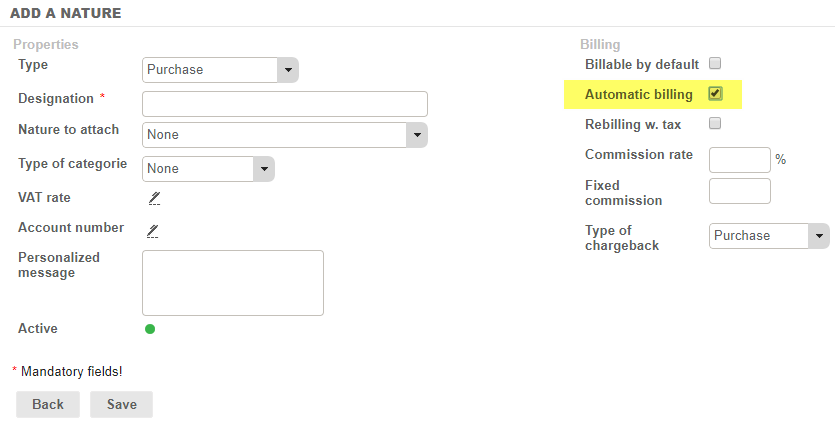
- The nature of purchase must be checked in Automatic billing. To do this, go to Configuration> Purchases > Natures.
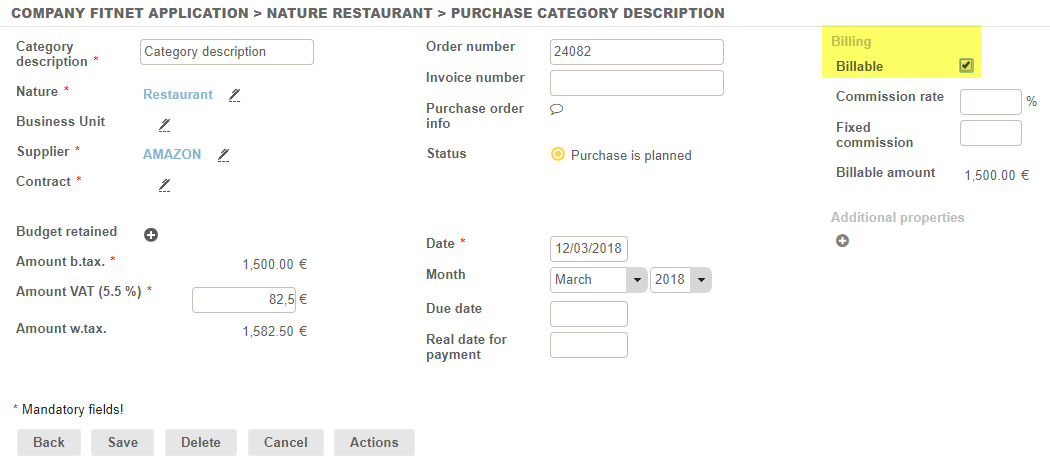
- The purchase must be checked as billable
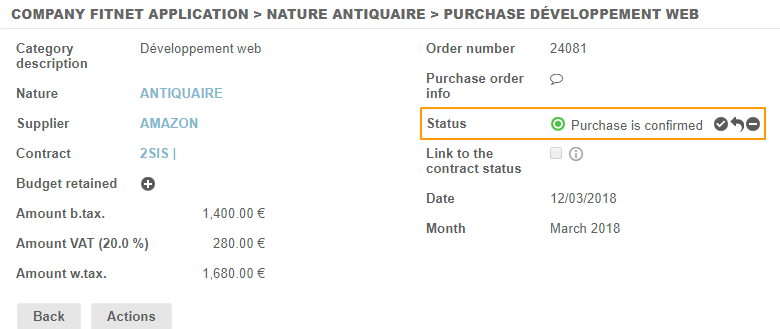
- The purchase must be in the status:
- Confirmed If the purchase (workflow) validation cycle is inactive.
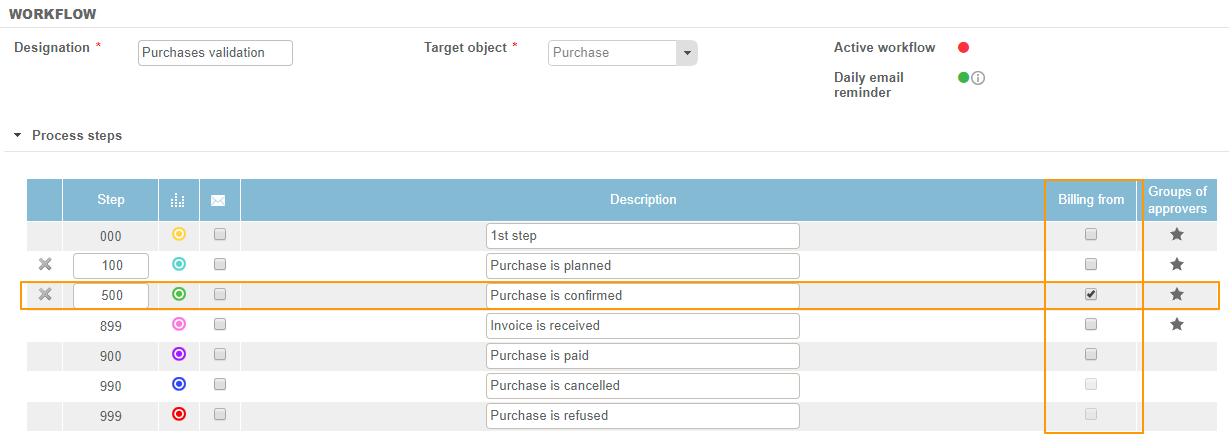
- When a validation cycle is activated, we can define manually from which step we will insert the purchase in the invoice. The purchase must be in the status you have defined.
There is no particular status to select. The one you choose must simply match your processings in order to put the purchase back to the right step.
When these 3 conditions are met, the amount of the purchase is automatically reflected in the invoice proposal.
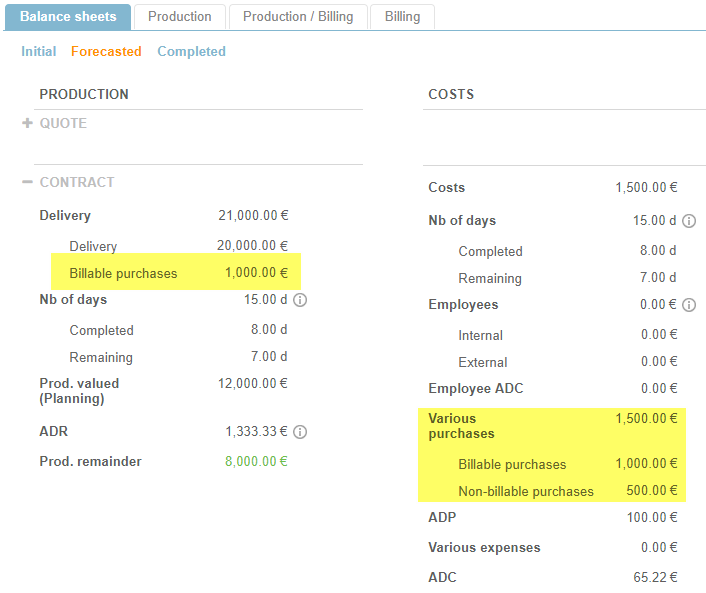
On the contract dashboard, you can quickly identify the amount of billable and non-billable purchases:
On a re-billed purchase, it is possible to define a commission percentage depending on the amount of the purchase, or also a fixed commission.
Commissions can be defined directly from the purchase screen (which must therefore be logically billable, as seen above), or also from the associated purchase kind.

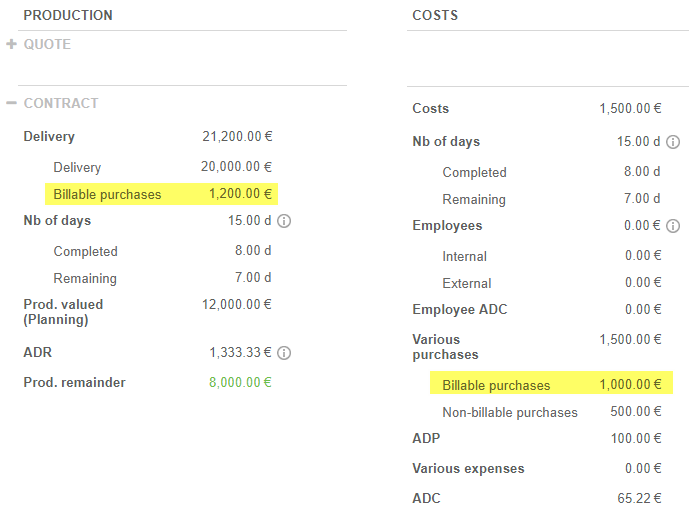
The amount to be billed to the customer is therefore the sum of the amount of the purchase and the commissions added to it. In the dashboard of the contract, we find the rebilled purchases+ the profit made on commissions.
It is therefore normal for the total amount of billable purchases to be different in the calculation of production and calculation of charges; the amount of the commissions is only taken into account in production.
Billable purchases in the invoice PDF
In the invoice PDF, it is possible to consolidate purchases according to your needs.
- When you bill one deal only at a time, the consolidation of billable purchases is configurable before you save your bill. When you are on the pre-invoice edition (open invoice status), we allow you to choose from 3 consolidation options:
-View all the purchases
-View the total by nature of purchases
-No consolidation: total purchases on one line
To configure it, go to the parameters > Billing tab:
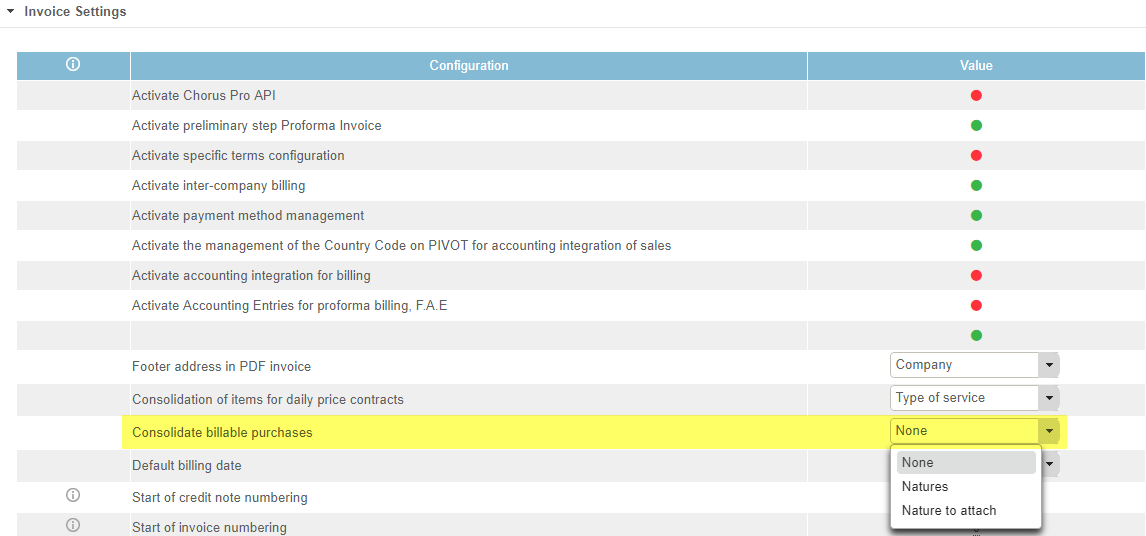
- When you use multi-contract invoices, you can choose to consolidate billable purchases from the settings in two different ways:
It is possible to display them on a single line (consolidation on one line). To do this, go to the Settings> Billing. Enter the value of the following parameter on "None":

The second practice is to consolidate purchases by nature of purchases. To define this one, go again to Settings> Billing. The value of the parameter is to be indicated on "Natures":
