-1.png?width=150&height=38&name=Logo_Original_Dark%20(2)-1.png)
Expense Categories allow you to configure standardised behaviour to be applied to all expenses within the category.
A number of configuration options allow you to configure Expense categories, and are organised in four boxes.
Expense categories apply in a SINGLE COMPANY context.
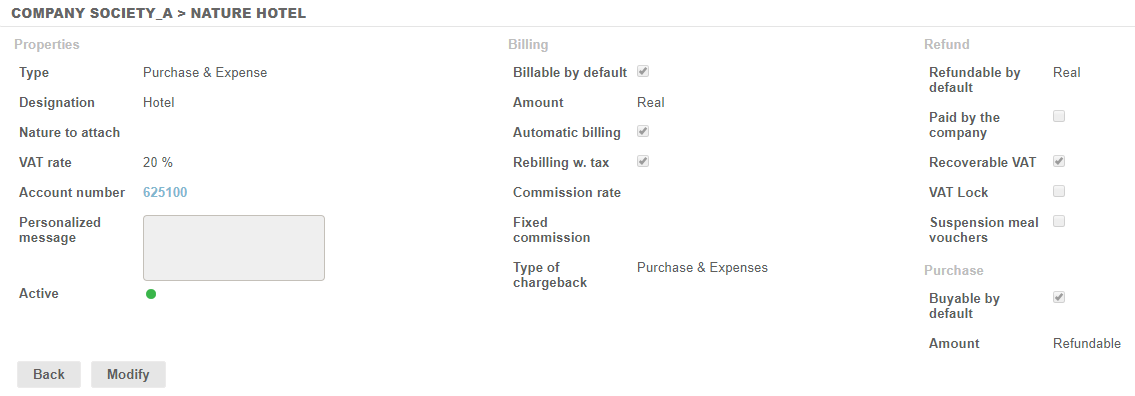
Properties box
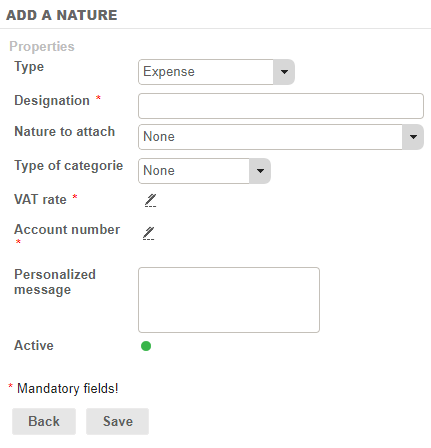
Types
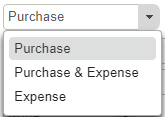
There are three different types:
- Purchase: A category that is only available when entering a purchase
- Purchase & Expense: A category that is available for both purchases and expenses
- Expense: A category that is only available when entering expenses
Designation
This is a free text field that matches the expense category label.
Nature to attach
A list of Expense Categories, which allows consolidation during reporting, particularly in respect of “Payable accounting”.
Type of categorie
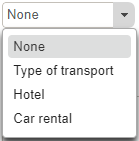
There are three types of travel/booking:
- Transportation (Type of transport)
- Accommodation expenses (Hotel)
- Car rental
Travel types are only used for mission orders. A parameter allows mission ordres to be turned on or off (Settings > Contracts > Functionalities > "Activate Mission order").
Depending on the type of travel or booking, the fields to be completed when entering travel details will vary.
VAT rate
A list of VAT rates configured within Fitnet.
This allows the amount of VAT to be calculated automatically when entering expenses. The calculated VAT amount can be changed manually, provided that the Lock VAT option is not checked – to generate invoices with multiple VAT rates.
VAT allows the deductible VAT account to be broken down = PIVOT for accounting integration.
Account number
The account number associated with the Expense Category for accounting purposes.
The account number allows consolidation for reporting purposes, particularly for “Payable accounting”.
Personalized message
This is a free text field, which allows you to send a message when entering expenses.
Active
This allows two lists of expense category to be generated. Inactive categories are no longer available when expenses are entered.
Billing box
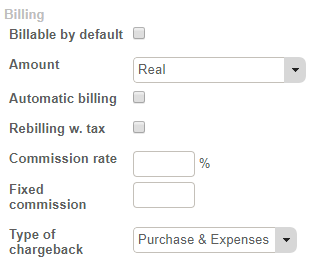
Billable by default
- If the box is ticked: The “Billable” box is selected by default when expenses are entered. As a reminder, the Billable box allows you to specify that the expense entry can be rebilled to the customer. Expense submissions where the box is checked are carried forward to calculate the remaining balance for official travel expenses (which are calculated at the Contract and Project level).
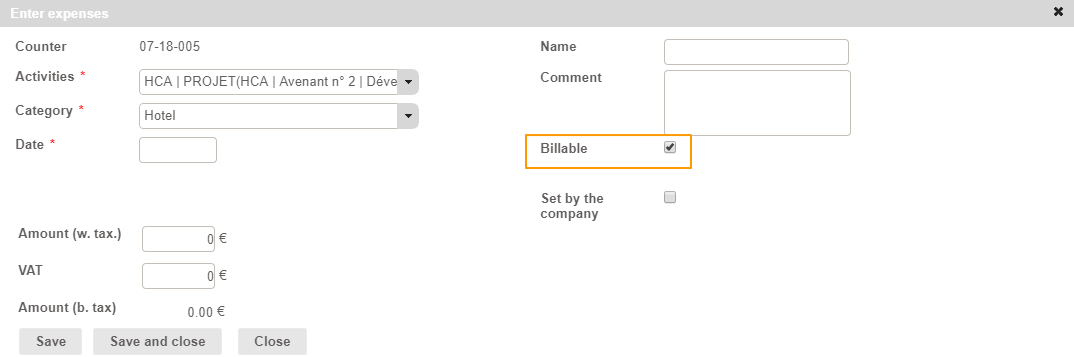
- If the box is not ticked: The “Billable” box is not selected when expenses are entered. If the user selects it when entering expenses, the same process is followed as for a billable expense.
Amount
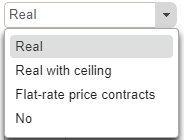
3 options are available.
- Real:
The billable amount is calculated based on the amount entered by the user.
The user must enter the amount including VAT.
- Real with ceiling:
The amount of the ceiling must be entered.
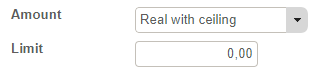
The billable amount is calculated based on the amount entered, up to a ceiling.
The user must enter the amount including VAT.
- Flat-rate price contracts:
The billable amount must be entered and is specified excluding VAT.
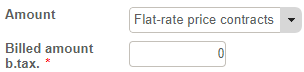
The billable amount is calculated based on a fixed price.
The user must enter a quantity.
Automatic billing
If the box is checked:
- Expenses where the billable box is selected will automatically be included in requests for payment (invoices in open status).
- If a workflow is active, only approved expenses will be included in requests for payment.
If the box is not checked:
- Expenses where the billable box is selected will not be included in requests for payment.
- Users must raise invoices manually.
Rebilling w. tax
If the box is checked:
- And Amount = Real: the amount to be invoiced is calculated based on the Amount entered, including VAT;
- And Amount = Real with ceiling: the amount to be invoiced is calculated based on the Amount entered, including VAT, with the ceiling applied to the amount entered, including VAT;
- And Amount = Flat-rate Price Contract; the amount to be entered is calculated based on the calculated Amount including VAT.
If the box is not checked:
- And Amount = Real: the amount to be invoiced is calculated based on the Amount entered, excluding VAT;
- And Amount = Real with ceiling: the amount to be invoiced is calculated based on the Amount entered, excluding VAT, with the ceiling applied to the amount entered, excluding VAT;
- And Amount = Flat-rate Price Contract; the amount to be entered is calculated based on the calculated Amount excluding VAT.
Commission rate
The percentage rate (%) is applied to the Billable rate.
Fixed commission
The mark-up is added to the billable Amount.
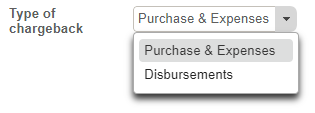
Type of chargeback
Two options are available:
- Expenses: Standard process
- Disbursements: Rebilling is managed specifically and the taxable basis is excluded. A setting allows you to turn disbursement management for expense categories on or off.
Refund box
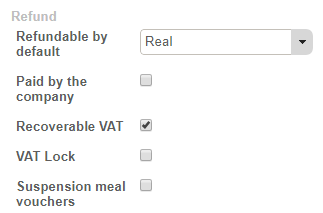
Refundable by default
Four options are available:
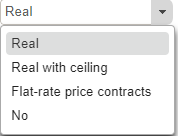
- Real:
Employees are reimbursed based on the amount entered.
Users must enter the amount including VAT.
- Real with ceiling:
The amount of the ceiling must be entered.
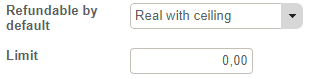
Employees are reimbursed based on the amount entered, up to a ceiling.
Users must enter the amount including VAT.
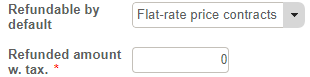
- Flat-rate price contracts:
The amount to be reimbursed must be entered, including VAT.
- No:
The amount reimbursed to the employee is a fixed price.
Users must enter a fixed price.
The employee is not reimbursed.
Paid by the company
If the box is checked:
- Expenses are paid directly by the company and are not reimbursed to the employee (excluded from the Payroll Information)
- They are broken down in the Purchase Journal (and not the Sales Journal).
If the box is not checked:
- Expenses must be repaid to employees and are included in the Payroll Information. If a workflow is active, only approved expenses will be included in the Payroll Information.
- Accounting entries are included in the Expenses Journal.
Recoverable VAT
If the box is checked: VAT is deductible.
If the box is not checked:
- The amount of the VAT is not deductible.
- When entering expenses, alongside the VAT amount, a (i) will appear (“Non-recoverable VAT”)
- The VAT rate is not ignored, and no amount is shown in the VAT amount when expenses are entered; however, the user is free to enter a VAT rate if desired.
Purchase box
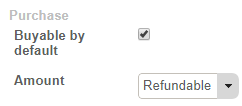
Buyable by default
If the box is checked:
- In the case of inter-company agreements, expenses entered are billable and thus can be purchased internally (independent of the invoice to the end customer).
- Amount: the amount must be entered.
If the box is not checked: In this case, inter-company expenses cannot be invoiced internally.
Amount
Two options are available:
- Refundable: the amount to be included on the inter-company invoice /purchase will be the amount that is Reimbursable to the employee.
- Billable: the amount to be carried forward to the invoice/inter-company purchase.