-1.png?width=150&height=38&name=Logo_Original_Dark%20(2)-1.png)
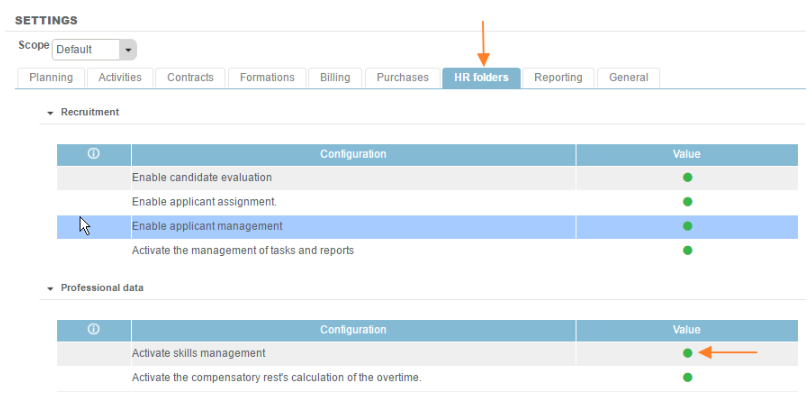
A setting property in Fitnet enables skills management to be activated:
Setting > HR Folders > Activate skills management.
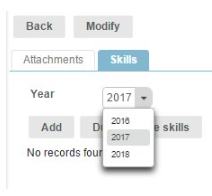
To assign skills to a candidate, enter the candidate file by clicking on the "Modify" icon in the candidate line. Below the candidate file, in the "Skills" tab, select the year in the drop-down menu or enter the desired year in the field.
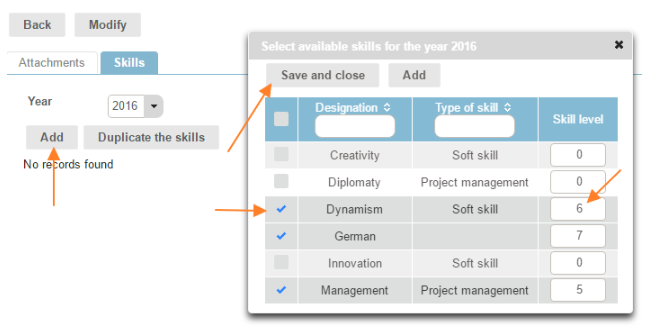
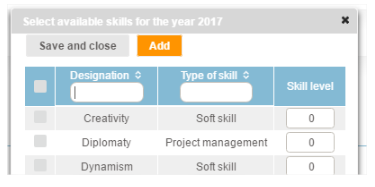
Then click on the "Add" icon. A window will open with the pre-registered skills. To select a skill, tick the box to the left of the skill line and state a skill level, then click on the "Save and close" button.
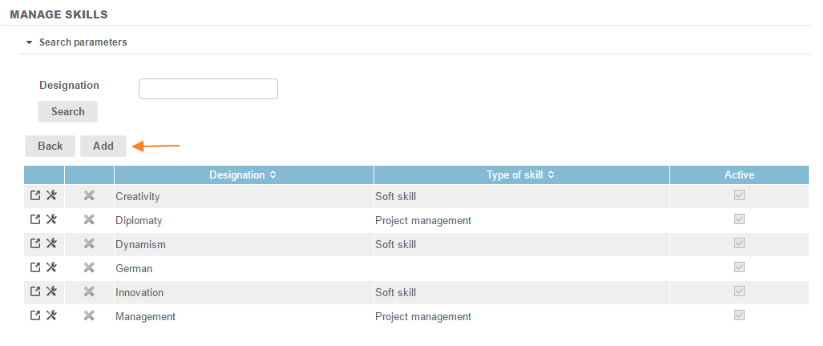
If no skills have been saved, or if no skills match with the profile, a skill can be added directly via a pop-up, by clicking on the "Add" button:
The skills setting page opens and skills can be added and set.
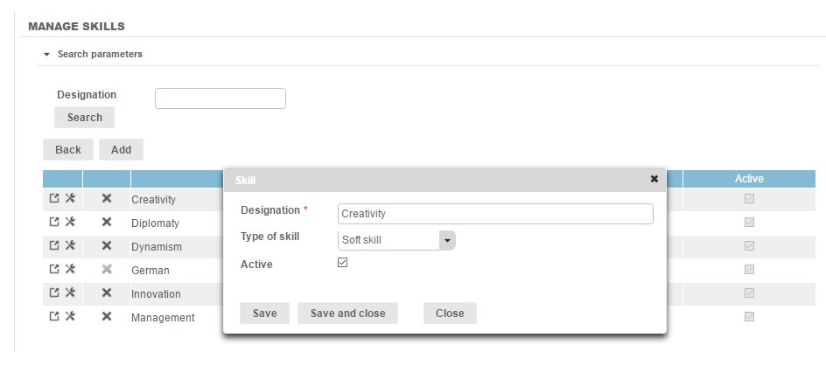
When a skill is added, the "designation" field is mandatory. It can be linked to a type of skill, one or more companies, and have an "active" or "inactive" status.
Skills and types of skills can also be set in the menu Configuration > HR Folders > Skills or types of skills.
The steps are similar to those explained above. In this case, to add a type of skill, only the "designation" field must be filled out.
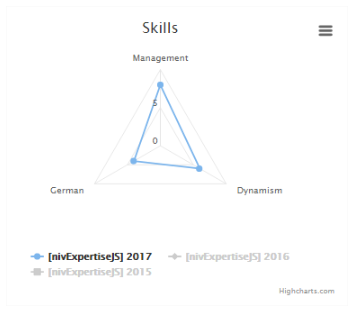
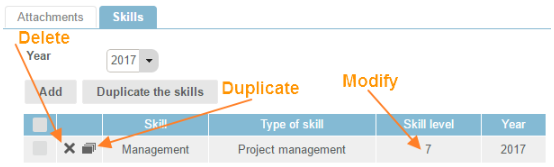
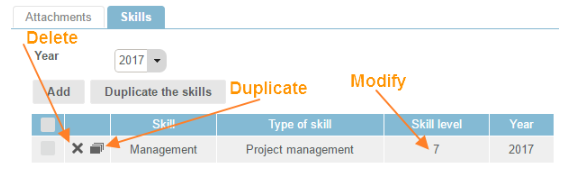
After selecting the skills for a candidate, the list of skills, the type, the skill level and the year are displayed in a table and on a graph. The skills can be copied, changed or deleted directly in this window, by clicking on the different icons: "delete", "skill level", "copy".
The development of a candidate's skills over the years can also be viewed. The graph displays the skill level for the year selected in "year" and for the two previous years.
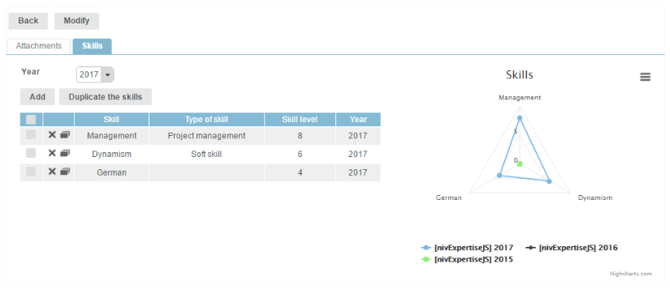
Three years, two years or only one can be displayed. The graph can also not be displayed at all. Simply deselect the [nivExpertise] in the graph legend by clicking on it.