-1.png?width=150&height=38&name=Logo_Original_Dark%20(2)-1.png)
Assignments achieved in Daily price, Flat-rate price, Subscription or Sales are well distinguished in the tool. They are not invoiced in the same manner.
The amount to invoice
Daily price contracts
Daily price contracts are invoiced by:
- days achieved registered by employees on their timesheet
- the invoicing plan selected for the contract
Flat-rate price contracts
Flat-rate price contracts - in "Invoice scheduling = Contract and Deposit " - are invoiced:
- based on the fixed flat rate for the case
- the invoicing date filled in at case level
Sales
Sales - in "Invoice scheduling = Contract and Deposit " - are invoiced:
- on the basis of total sales Items filled in on the case
- the invoicing date filled in at case level
Hourly Activities
Any hourly activity on a contract gives rise to an invoice based on that specific case.
Hourly activities are invoiced:
- monthly
- on the basis of hours recorded by employees under the Hourly Activities tab of their Timesheet
- and unique prices entered in the tariff grids.
Invoicing Deadlines
In all cases, when the mode is selected "Invoicing Schedule = Due dates": invoicing deadlines will then have been created manually by entering the date and the amount due.
Executive Agreement Option
Contracts can be related to a contract via the project. In this case the amount to invoice takes into account the sales conditions applicable to the customer as documented in the contract.
The Customer's executive agreement shall in particular specify the applicable discount. This discount is automatically pre-invoiced in all cases related to this executive agreement via the project.
Actions available in pre-invoicing
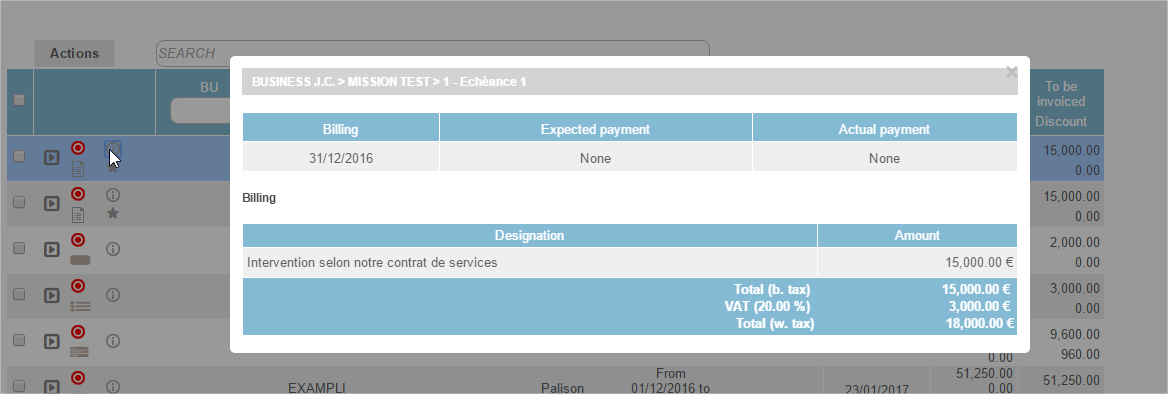
Consult the contents of the proposed invoice
The icon lets you view the items on the invoice to be issued
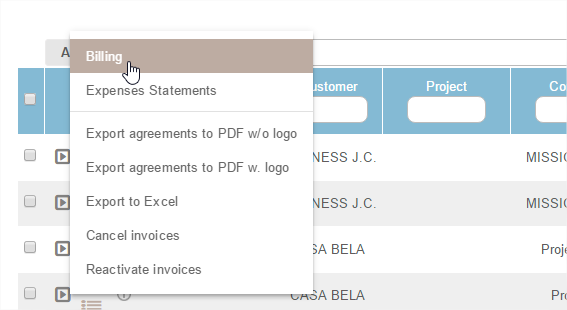
Invoice
Invoice proposals are invoiced
- Unitary - one by one via the Actions button positioned on each line
or
- En masse using the multiple check-box selection button Actions positioned at the top of the table
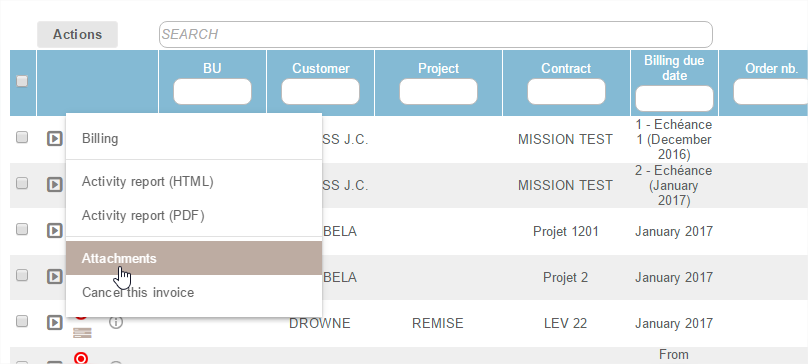
Add attachment
You can attach an attachment to each invoice to be issued using the Actions button.
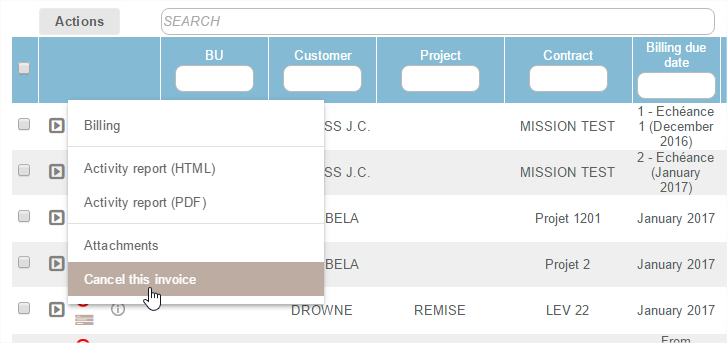
Cancel a proposed invoice
Each invoice to be issued can be cancelled
- Unitarily using the Actions button
- En masse using the multiple checkbox selection and the button
- The status indicator then changes to status cancelled
- The cancelled invoice proposal is not deleted but still kept in memory, it can be reactivated with the Actions button
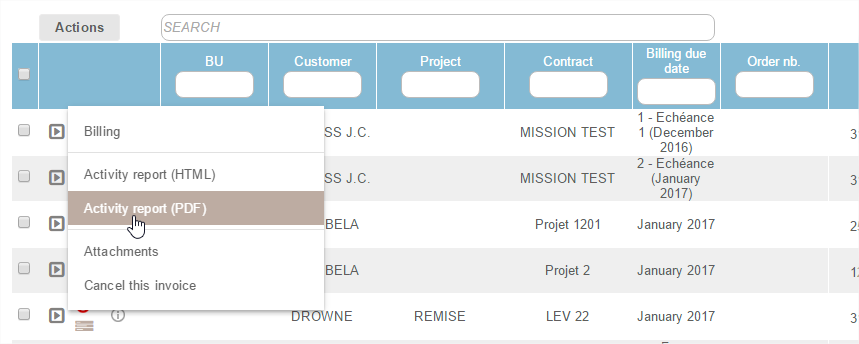
Access the Activity Report
In case of invoicing for time passed (Daily price or Hourly Activities) the details of the time passed or Activity Report:
- Is available and searchable on the invoice proposal
- From the Actions button
- The advantage is that it can be attached to the invoice when sending