-1.png?width=150&height=38&name=Logo_Original_Dark%20(2)-1.png)
Expenses can be entered from:
- The Activities module > Expenses
- The left-hand menu: Menu > Enter > My expenses
- The Fitnet Apps application
- The timesheet
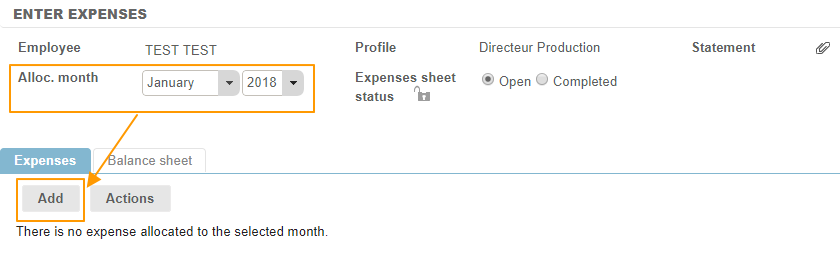
Employees save their expenses on a monthly sheet, to be assigned to that month’s costs.
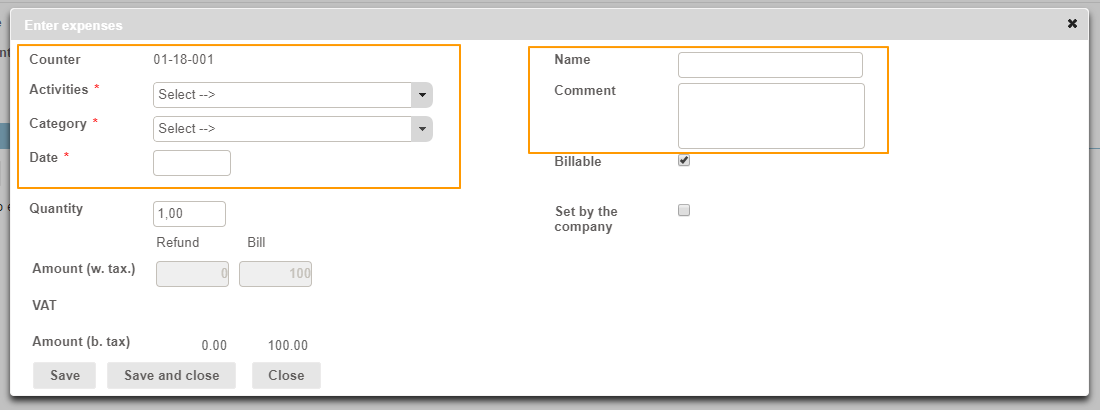
A window enables employees to enter information on the new expense entry.
Information shown on the expense entry
Counter
A unique number attached to each expense entry.
Counters for expense entries are configurable and can be turned on or off.
Activities
This is the activity linked to the expense entry. Employees can assign expense entries to contracts or off-contract activities. The list only shows contracts to which employees are assigned during the relevant month.
Expense categories
The list of expense categories is fully configurable and customisable.
Date
The billing date.
Name
This is a free text field and matches the expense category label.
Comment
Free text field.
Expense amounts
Quantity
If the expense category selected is configured with an overall billable and/or refundable amount, the quantity field is shown. As soon as a quantity is selected, the system automatically calculates the Billable and/or Refundable amount as the case may be.
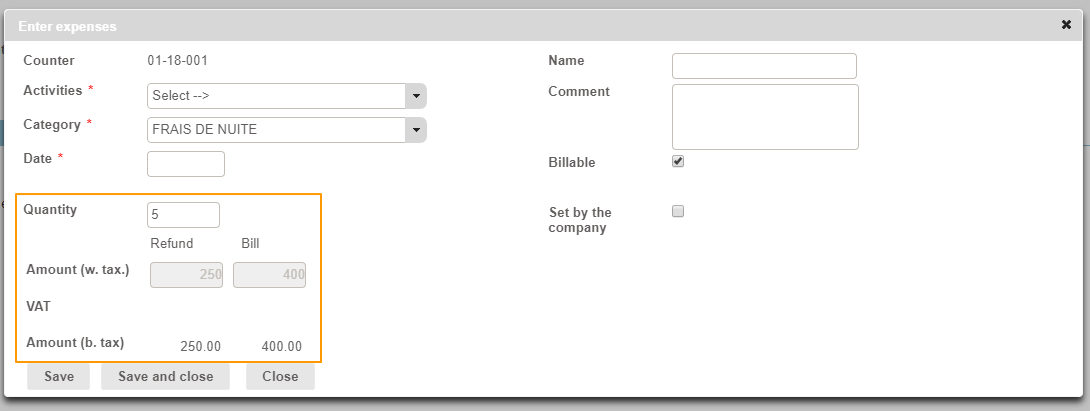
Amount including/excluding taxes
Employees should enter the amount including any taxes. Depending on the expense category selected, VAT amounts are calculated automatically, generating an amount excluding taxes (amount b. tax), which is equal to the amount including taxes (amount w. tax) less the amount of the VAT.
VAT amount
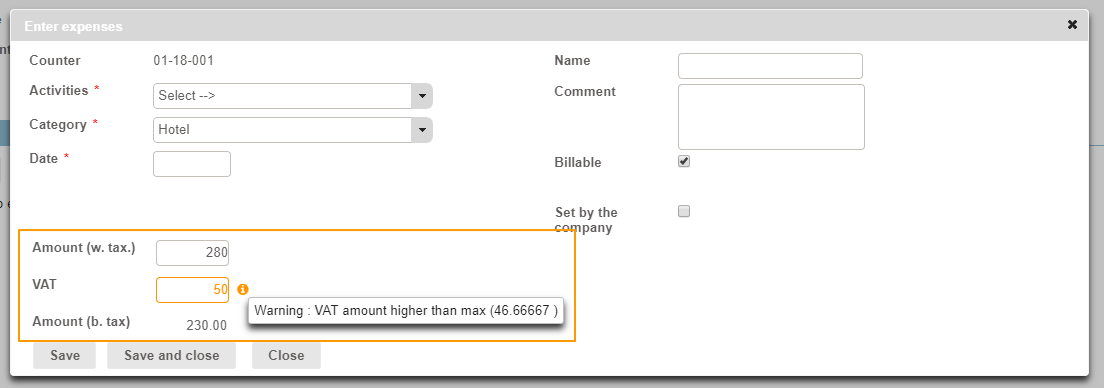
This is calculated automatically, depending on how the selected expense category is configured. Fitnet Manager supports manual entry of the VAT amount and automatically recalculates the amount excluding taxes to generate invoices with multiple VAT rates. To do this, you must de-select the VAT Lock option when configuring your expense type or category.
- If a manually entered VAT amount exceeds the maximum permitted value, the system will show the following message:
Options
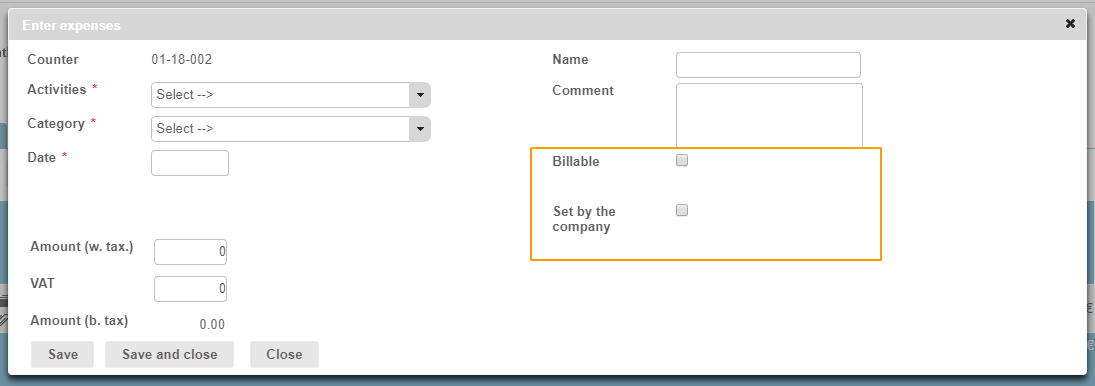
Billable
This checkbox allows you to specify that the expense entry can be rebilled to the customer.
Set by the company
This checkbox allows you to specify that the employee has not advanced the expenses, i.e., that the invoice was paid by the company directly. Consequently, this expense entry will not feature in the Payroll Information reporting.
Billable services
In the case of inter-company expenses, this option allows you to enter whether the expenses entered are billable and therefore can be purchased internally (irrespective of whether they are invoiced to the end customer).
A configuration option allows you to turn management of billable expenses on or off for subcontractor purchases.
Rebilling type
Specifies whether the rebilling will be charged as an expense or a disbursement.
A configuration option allows disbursement management to be turned on off for expense categories.
When you click on Save, the expense creation form will be reset (cleared) and allows you to enter a new expense entry directly, without having to reopen the pop-up window.
If you click on Save and close, the form will save your entry and will then close.
Other features
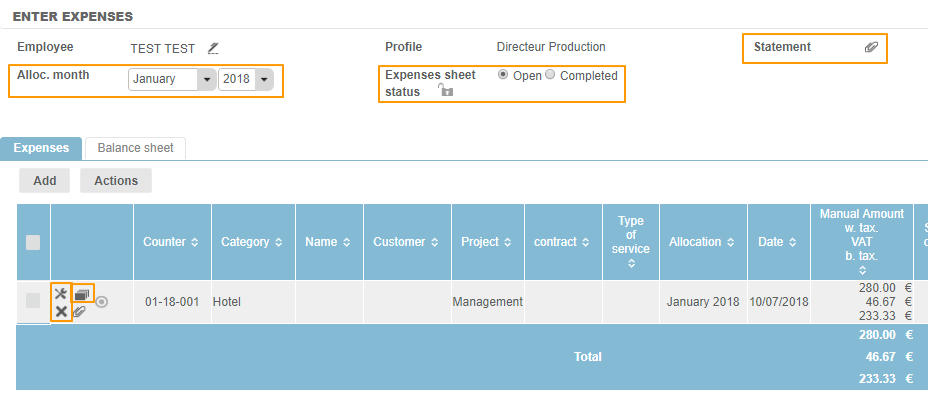
A range of features are available on the homepage:
- Alloc. month: Drop-down menus allow you to choose the month to which the expense entries to be viewed or added are assigned.
- Expenses sheet status: This property allows employees to finish their expense entries by setting the status to “Complete”
 ) or to leave them in progress (“Open”
  status).
 - Statement: This icon:
 , which is shown on each expense line allows you to add supporting documentation by uploading attachments.
 - Duplicate the expense: This icon
 allows you to create a new expense by copying an existing one. This avoids having to re-enter data, for instance in the case of recurrent expenses.
 - Delete or modify an expense:An expense can still be changed or deleted, even after being saved, provided it has not been submitted for approval.