-1.png?width=150&height=38&name=Logo_Original_Dark%20(2)-1.png)
Specific Expense Categories can be created for a Contract or a Project. These categories will only be available when entering expenses specifically for the contracts or projects for which they were created.
Creating categories
In the Contract or Project, use the Actions > Configuration button to click on Add an Expense Category. This option allows you to create a Category that will only be available to enter for this contract.
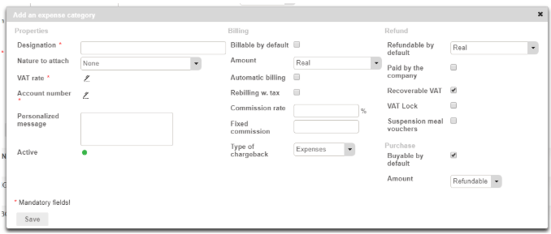
Once all mandatory fields have been completed, the Save button will be available.
Cloning
Use the Actions > Configuration button at Contract/Project level to click on Attach an Expense Category. This option allows you to select an expense category that was created using the Configuration module and clone it to apply it to the Contract.
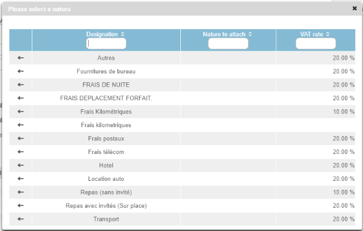
All fields are filled out in advance with the selected type. They can be changed before they are saved if needed:
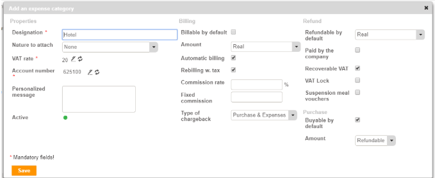
For more information about the fields in an expense category, please refer to this article.
Entering expenses
When an expense entry is created, and once the contract with the specific Expense Categories has been created, the selectlist will contain:
- Contract-specific expense categories.
- General categories: categories that are configured throughout the company.
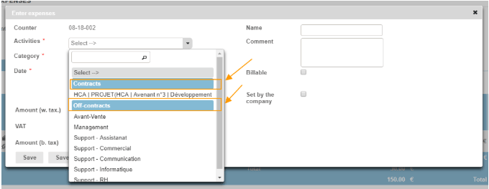
Please refer to this article for more information about creating expense entries.