-1.png?width=150&height=38&name=Logo_Original_Dark%20(2)-1.png)
CREATING A PROJECT
Where in the application can I create a project?
Projects are created from the "Case" module:
- From the Create button> Create Project
- From the Projects database> "Add" button at the top of the table
- From the customer record> "Project" tab - "Add"
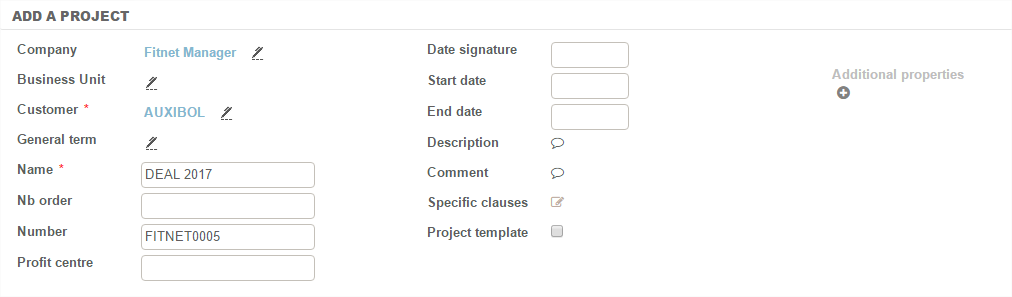
Several description fields can be used to fill in the components of a project.
Required fields
Only three fields are required to create a project:
- Company: Fitnet is multi-company. If more companies are set, the project is attached by default to the company in which the user is located during creation
- Customer:
- You select a customer from the existing database if the file has already been created
- If it is a new customer, Fitnet offers rapid creation of a new entry using the "Add" button at the top of the table. A rapid creation pop-up window enables you to enter the customer's basic information.
- Project name: the project name
Optional Fields
- BU (Business Unit): Management of BU is optional. If active it enables you to divide the projects by linking them to a BU.
- Contract: Adding a contract enables you to associate a contract number
- Order number: free field
- Profit centre: free field - can be disabled in the settings.
- Date of signature: for more information
- Start / end dates: for additional information (cases created from the project will resume these dates for their own start / end by default)
- Description: free field that can appear on invoices
- Special clauses: free field that can appear on invoices
Note that, unlike the case, there is no relative status for the project.
PROJECT "ACTION" BUTTON
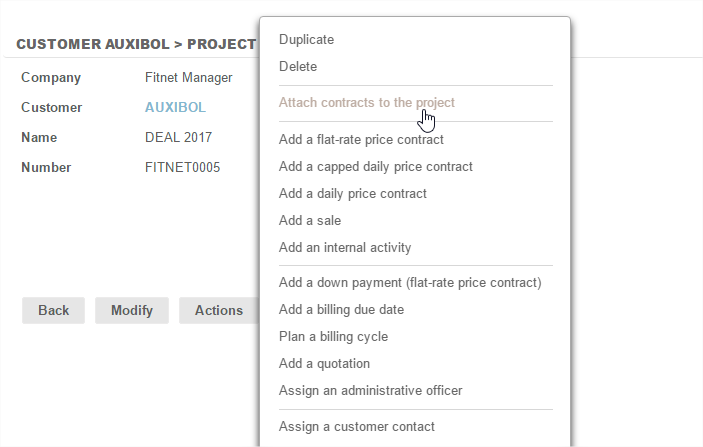
The action button contains all the functions available on a project.
The actions available on a project are:
- Clone the project: enables you to duplicate the project on the same customer or another customer, with all or some of its components - by choice
- Delete Project: Attention, deleting a project involves the removal in cascade of all associated elements (cases, due dates, etc.)
- Attach a case: if cases already exist on the project's customer, you can link them
- Add a case: creation of new cases to be linked to the project
- Create an Estimate
- Allocate: a customer contact
- Attach documentation: by downloading - no size or quantity limit
- Get information: on assignments or invoices cancelled for example
It is important to note that there is no affectation or employee scheduling directly on the project - but only on cases.
It is no longer possible to enter the amount manually: the project amount results automatically from the amount of the cases that are attached to it.
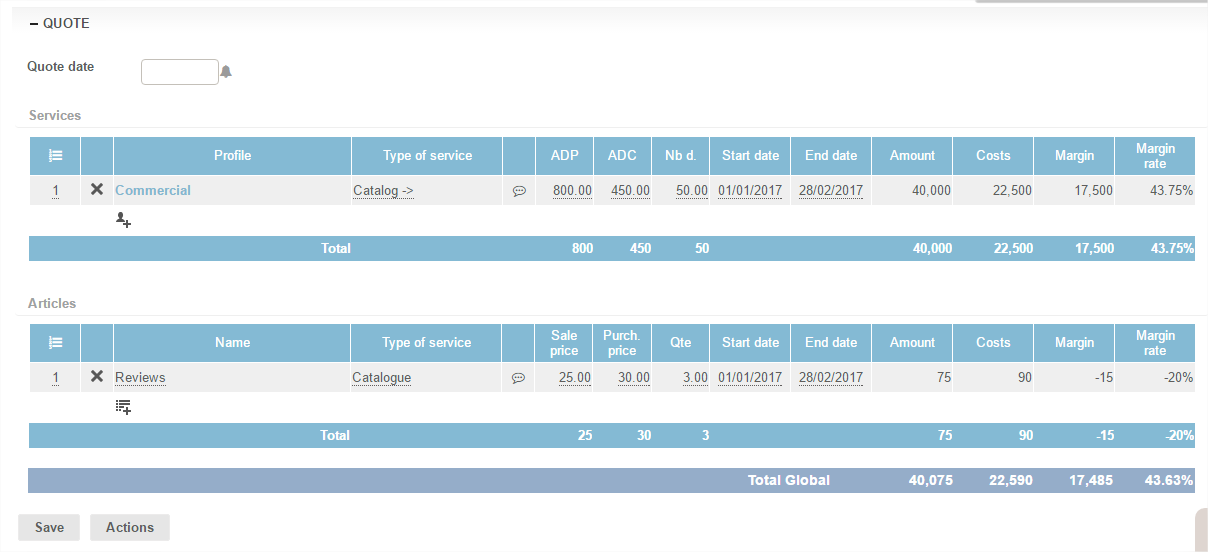
The project can be broken down in pricing through the "estimate" tool.
The project can be broken down in pricing through the "estimate" tool.
PROJECT PRICE BREAKDOWN VIA THE ESTIMATE TOOL
The estimate tool is available at case level and also at Project level using the Action button. To bring the estimate to bear at Project level you will have to remember to tick the "project" check-box.
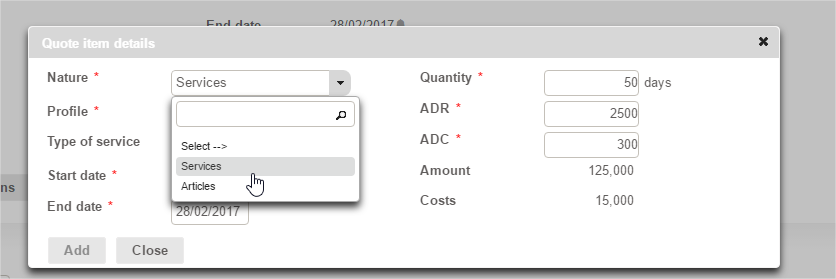
The creation of the estimate at project level enables you to enter 2 types of items:
- Services:
- The system then proposes to select the profile to be added
- Articles:
- The system then prompts you to enter the title and optionally the type of service provision
An "Estimate" page is then created in which the lines are distinctly divided between the type of services provisions: "assignments" and article: "sales/deliverable."
You can:
- Edit all items
- Delete rows
- Add a new line to estimate