-1.png?width=150&height=38&name=Logo_Original_Dark%20(2)-1.png)
To configure a workflow for expenses, go to Configuration > Workflow > Add. Enter a designation and choose the Expenses Target object.
The approval cycle available for the Expenses object is as follows:
Approval types
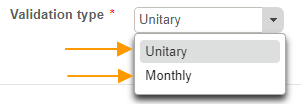
Expenses can be approved individually or on a monthly basis.
Individual approvals
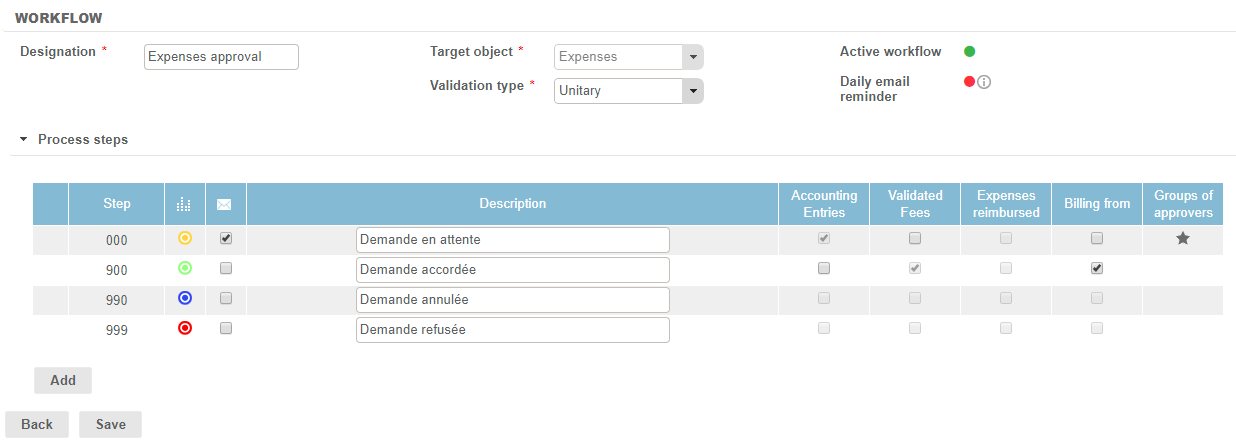
Expenses can be submitted individually by employees, and each one is, therefore, also approved individually.
Monthly approvals
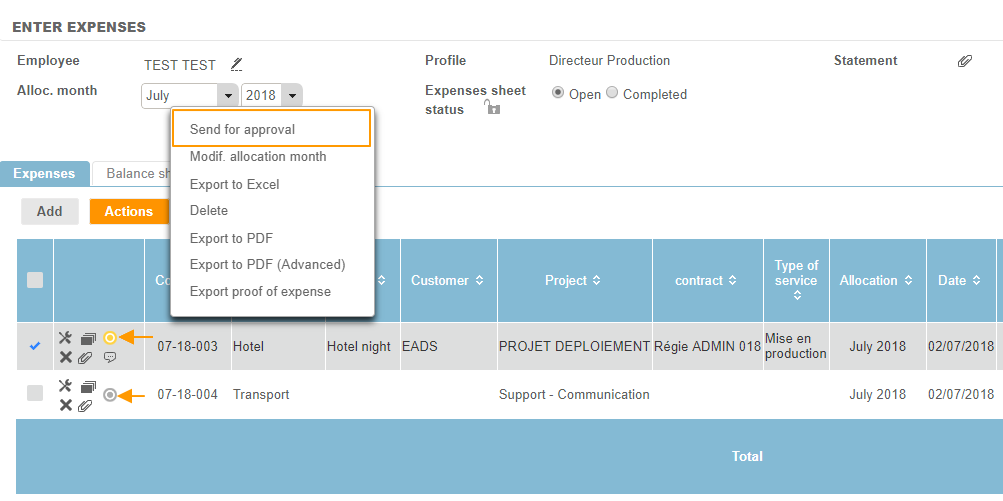
Expenses can be submitted once per month. They are combined into a monthly expenses sheet and, once the sheet has been submitted for approval, employees can no longer enter any further expenses for the month.
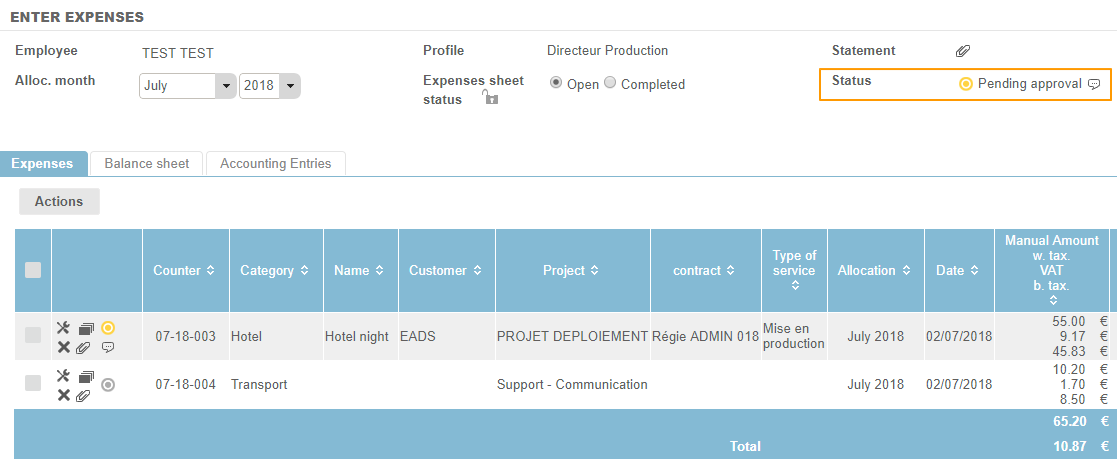
Stages
A minimum of four stages are required:
- 1 “submission” stage: a single approval is required to process the request.
- 3 “approval” stages: 3 options are available for the approver to deal with the request
Returning an expense submission
When an expense submission is returned in the first stage of the workflow, it exits from the workflow. The employee can change and resubmit the expense request.
When an expense note is returned to from the final stage in the workflow or any intermediate stage, it returns to the previous stage in the workflow. The employee cannot make any changes.
Rejecting an expense submission
Click on the "Reject" button: the expense request will appear to the employee as “Rejected”. The expense note can no longer be changed or deleted. An explanatory comment can be added, detailing the reason for the rejection (see Workflow Configuration).
Approvers and administrators are still able to make changes.
Cancelling an expense submission
Click on the “Cancel” button: the expense request will appear to the employee as “Cancelled.” The employee can nevertheless change the expense request and resubmit it.
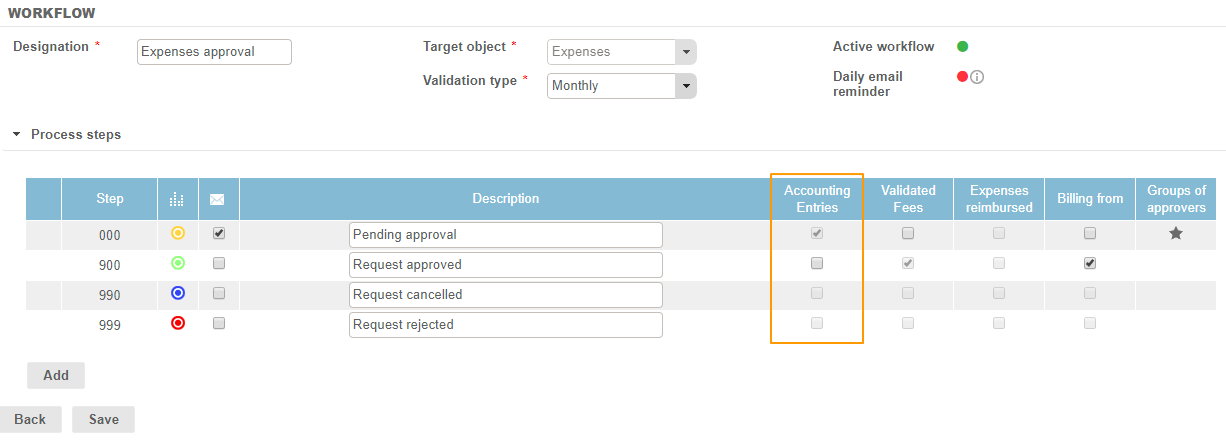
“Accounting Entries” column
It is possible to specify the stage at which Accounting Entries are generated for expenses. A stage must always be selected if the “Activate accounting integration for expenses” setting is active.
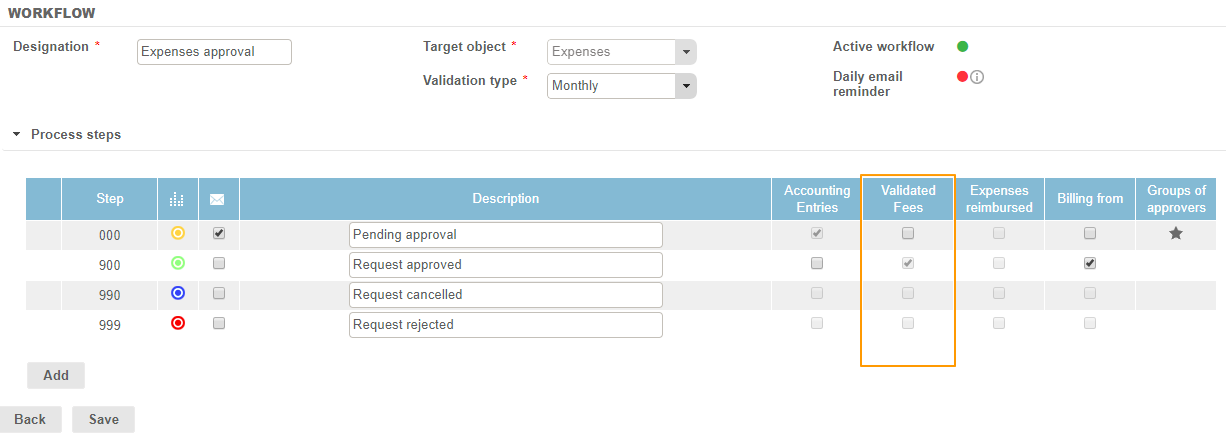
“Approved Expenses” column
The approval stage can also be defined, i.e., when the expense is deemed to be at stage 900, triggering all actions related to this final stage.
- Inclusion in the Payroll Information
- Inclusion in the amounts falling due for Advances against Expenses payments only.
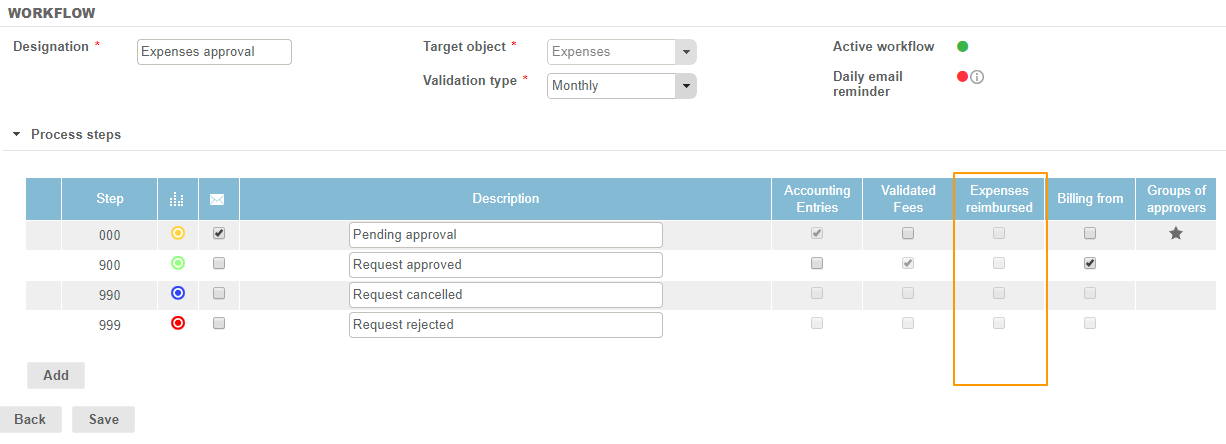
“Reimbursed Expenses” column
You can also choose the stage at which expenses will be considered to have been “Reimbursed.”
The SEPA file for expenses excludes expenses that are in the “Reimbursed” status.
Notes:
- This "Expenses Reimbursed" option is left unchecked in the workflow by default.
- It is not possible to select both “Approved Expenses” and “Reimbursed Expenses” for a single stage, as this would only generate an empty SEPA file.
- When the SEPA file is generated, if there is no “Reimbursed Expenses” stage configured in the workflow, the total amount of expenses to be reimbursed to employees will be exported.
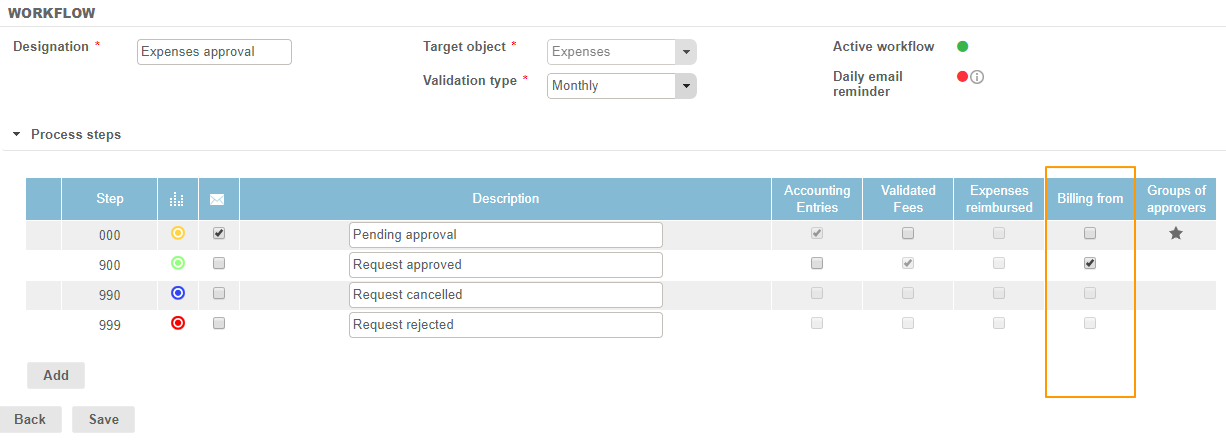
“Billing from” column
The "Billing from" column allows you to define the point at which “billable” expenses must be invoiced (i.e., must trigger or generate a request for an invoice).