-1.png?width=150&height=38&name=Logo_Original_Dark%20(2)-1.png)
Employees with an assigned role in the approval process have a specific menu entry in their personal Requests workspace:
- Requests “to process”
- Requests “already processed”
Requests can be processed in bulk or individually via the list of requests in “Requests to process.”

Expense requests are processed in different ways depending on the approval type configured in the workflow (Configuration > Workflow > Workflows).
Individual approvals
If a workflow that involves individual approvals is active, the expense entries to be processed can be found in the Expenses tab.
Each expense entry will, therefore, be processed individually.
Monthly approvals
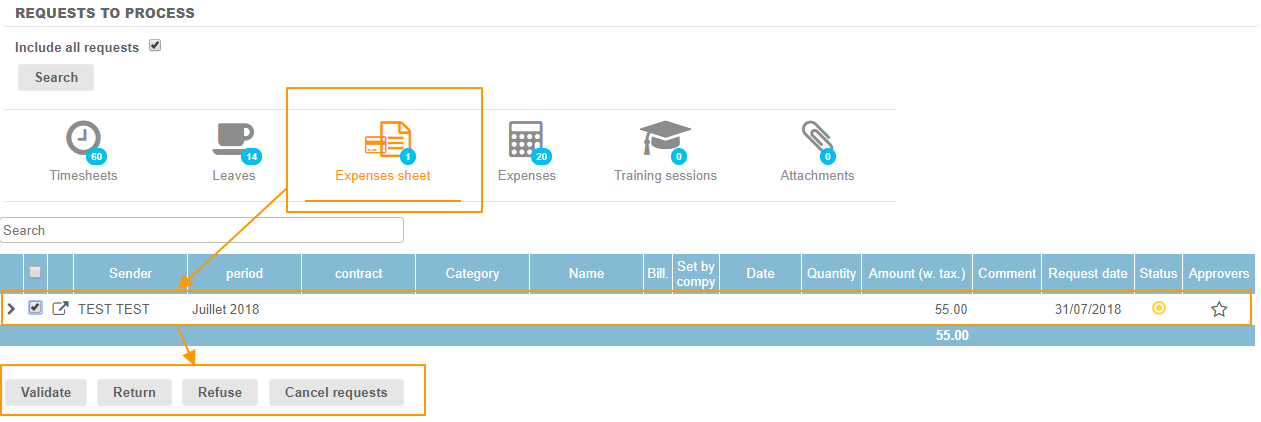
If a monthly approval workflow is active, the expenses sheets to be approved can be found in the Expenses Sheet tab.
All expenses for the month are, therefore, processed in bulk.
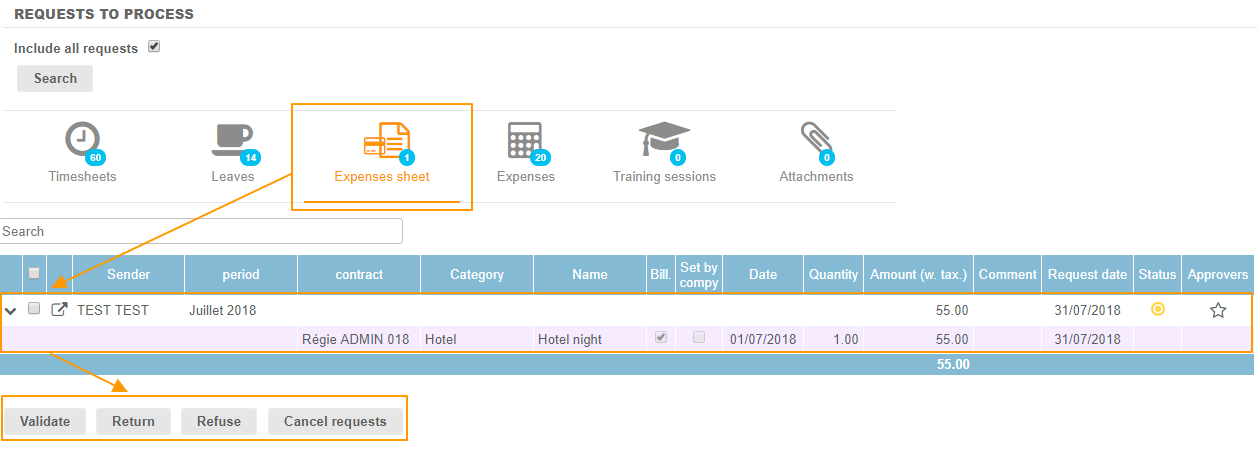
Details of each expense note for the month can be viewed by clicking on the  icon at the start of each line.
Approving, returning, rejecting or cancelling an expense request
Before processing an expense request, approvers can view requests by clicking on the icon  at the start of the line.
To approve, return, reject or cancel an expense request, simply select the line item(s) for the expenses and click the relevant button at the bottom of the page.
- Approve: The request moves to the next stage in the approval cycle.
- Return: The request is returned to the previous step in the approval cycle.
- Reject: The request is rejected and will not be processed by the system any further. No changes can be made.
- Cancel: The status of the request changes so that it is outside the workflow, and the employee regains control to make changes and resubmit the expenses for approval.