-1.png?width=150&height=38&name=Logo_Original_Dark%20(2)-1.png)
Fitnet Manager allows you to create Workflows to automate the approval sequence for expenses.
The submission process varies depending on the type of approval configured in the workflow.
Individual approvals
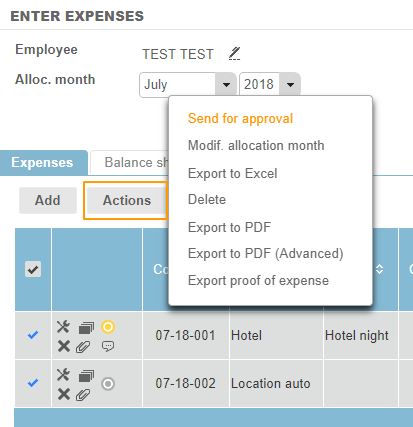
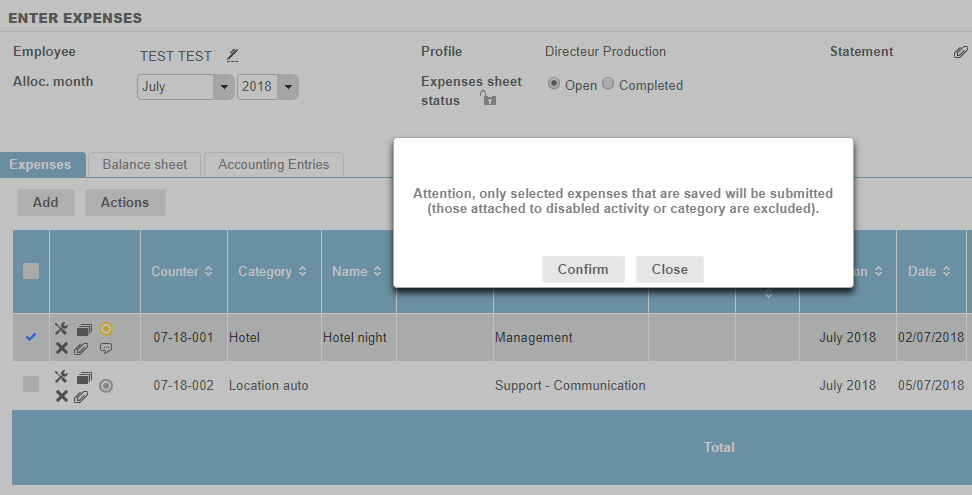
If a single approver workflow is active, the checkbox against each line allows the expenses to be selected, then submitted by clicking on “Send for approval” in the Actions menu.
Once an expense has been sent for approval, it can no longer be changed or deleted. This allows Fitnet Manager to ensure the security of the approval process, and the approver is then responsible for dealing with the request.
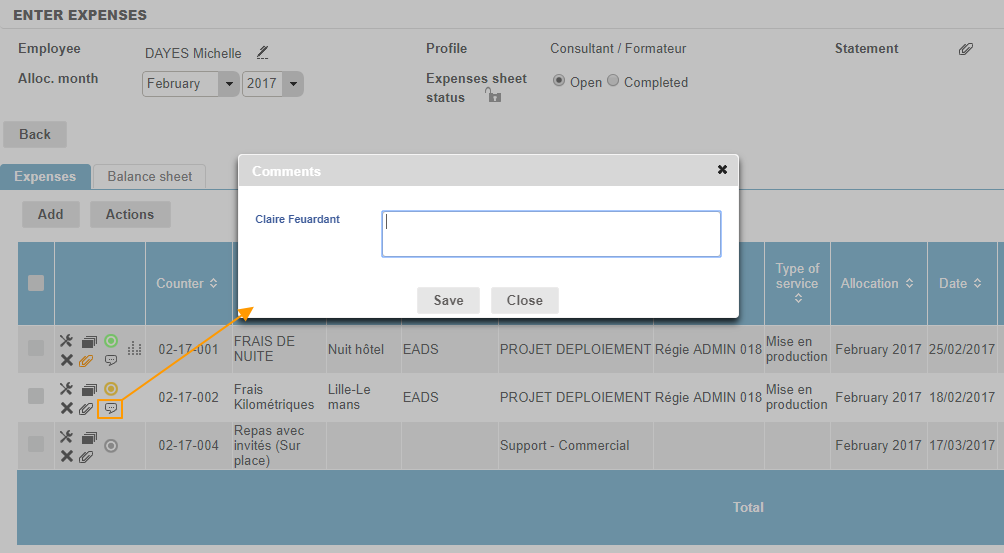
The colour code of each expense entry makes it possible to obtain information about its approval status very quickly: not submitted, pending approval, rejected, etc. It should be noted that these stages are entirely configurable in the workflow.
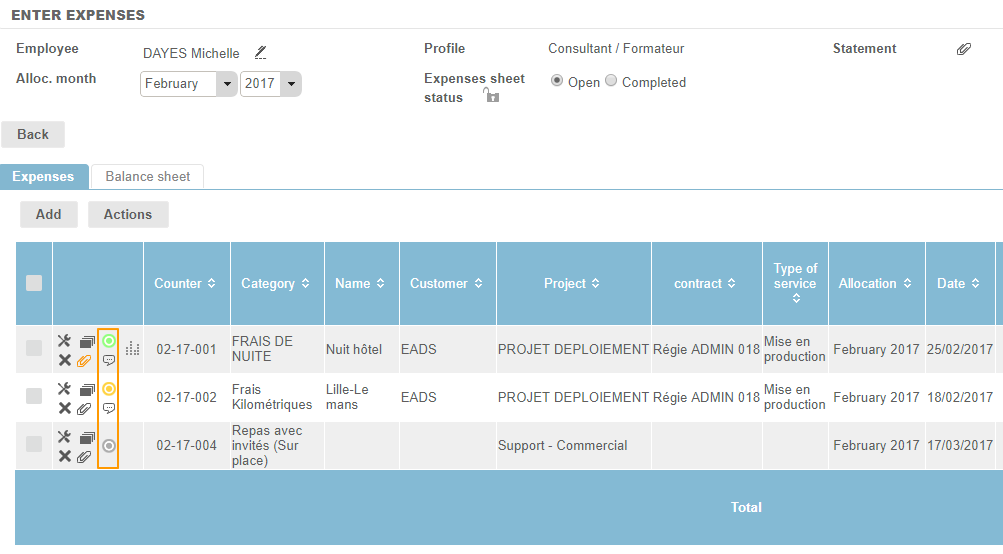
This icon: allows users to create a discussion thread for each request. This exchange of messages, directly in each request, provides an opportunity for the requester and the approver to provide specific comments or information and to restrict the number of e-mails that are sent.
Monthly approvals
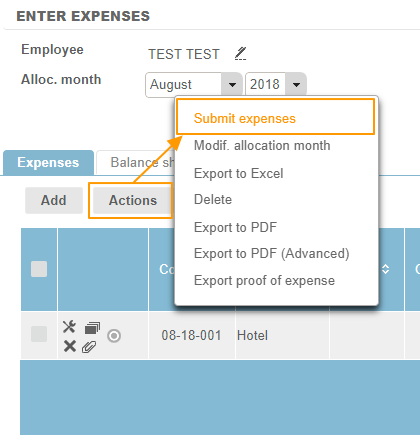
Once employees have entered all their expenses for a given month, they can submit them for approval by clicking on Actions > Submit expenses.
Following submission, it is impossible to add, change or delete any expense entries for the month.
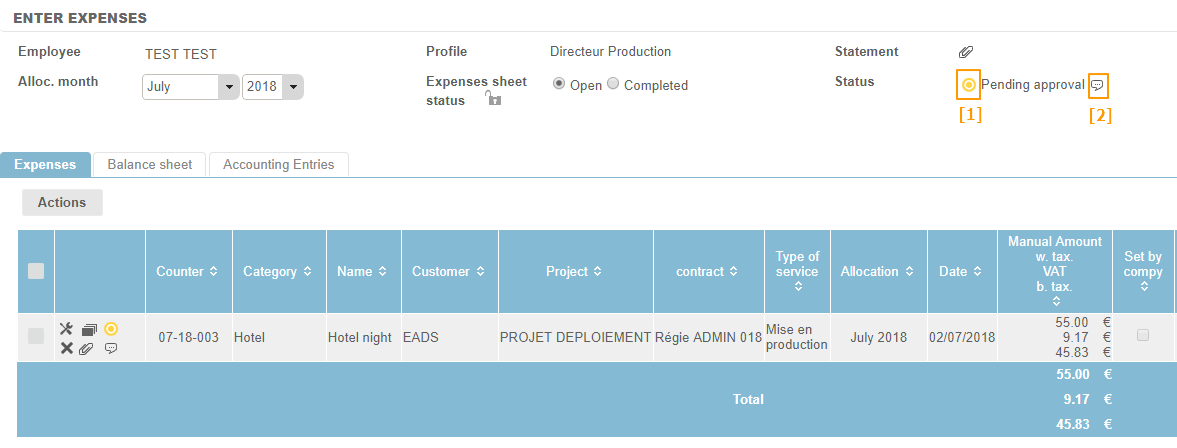
The colour code at the top of the page [1] provides details of the approval status of the expenses. This icon: [2] allows a discussion thread to be created.