-1.png?width=150&height=38&name=Logo_Original_Dark%20(2)-1.png)
To change the configuration of the Expenses module, go to Settings > Activities tab > Expenses.
If your environment supports multiple companies and you want to change a setting only for one of these companies, you need to specify the scope.
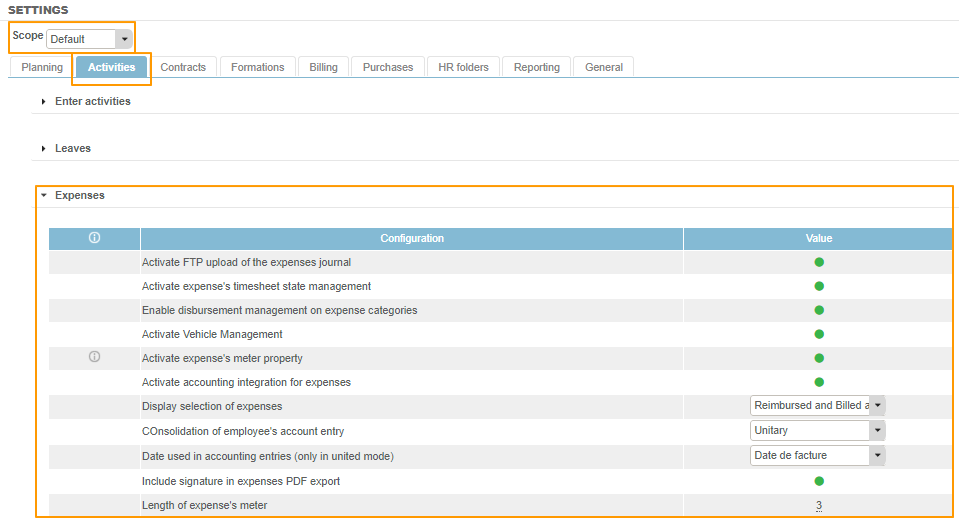
Activate expense's timesheet state management
Active: When entering expenses in “Expenses,” the “Expenses sheet status” option is available. This allows you to select the status, which can be “open” (allowing expenses to be added”) or “completed” (which means that it is not possible to make any new entries).
Inactive: It is not possible to specify that the Expense sheet is complete.
Enable disbursement management on expense categories
Active: This provides access to the selectmenu for the Expense Categories to define whether the entry is treated as an Expense or as a Disbursement. For more information about this feature, click here.
Inactive: By default, all Expenses will be categorised as Expenses.
Activate Vehicle Management
Active: Activates configuration for vehicles and mileage scales. This unlocks the “Mileage expenses” category for expenses in connection with these configuration items (Configuration > Activities). For more information about this feature, click here.
Inactive: This does not allow for a catalogue of vehicles and mileage scales to be managed.
Activate expense's meter property
Active: Activates sequential numbers for expense entries, which are specific to each employee. The format is as follows: MM-YY-XXX, with MM being the number of the month, YY being the final two digits of the year, and XXX the sequential number. For more information about this feature, click here.
Inactive: Expenses are simply numbered, one by one, for each employee.
Activate accounting integration for expenses
Active: Activates accounting integration for expenses. Unlocks the Expenses Journal in Reporting > Accounting > Expenses Journal.
Inactive: No accounting entries are generated for expenses and the Expenses Journal is not available.
Display selection of expenses
Reimbursed amount : When expenses are entered, only the “reimbursed” amount is shown.
Billed amount: When expenses are entered, only the “billed” amount is shown.
Reimbursed and billed amount: When expenses are entered, both “billed” and “reimbursed” amounts are shown.
Consolidation of employee's account entry
Unitary: In the Expenses Journal, third-party expense lines are consolidated on an individual basis by the employee’s third-party account.
Monthly: In the Expenses Journal, third-party expense lines are consolidated on a monthly basis by the employee’s third-party account.
Date used in accounting entries (only in united mode)
Month: The date when the accounting entry is generated = the first day of the month to which the expense is to be charged.
Invoice date: The date when the accounting entry is generated is the date of the invoice.
Include signature in expenses PDF export
Active: PDF exports of expenses include a signature block.
Inactive: PDF exports of expenses do not include a signature block
Length of expense's meter
This relates to the length of the XXX value in AF4 above. The "Activate expense's meter" property
must be activated first.