-1.png?width=150&height=38&name=Logo_Original_Dark%20(2)-1.png)
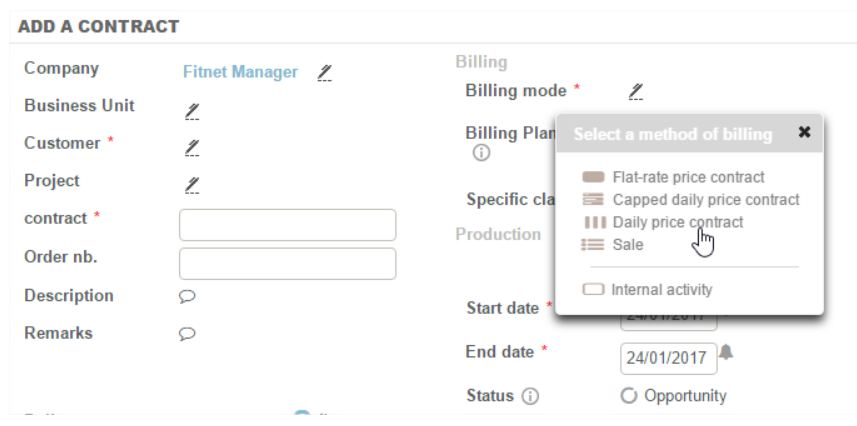
Among the determinants and mandatory elements when creating cases there is the choice of the 'Invoicing Mode ".
Invoicing results directly from this choice:
- Flat-rate price contract
- Daily price contract
- Capped daily price contract
- Sale
- Internal activity
Invoicing schedule
Fitnet uses two terms to automatically generate proposed invoices:
- A deadline is scheduled
- The contract is launched (in open status no invoice proposal is created)
The pre-invoicing (invoices are proposed) is automatically scheduled:
- from the date of invoice of the contract ("Invoice scheduling = contract and Deposit")
- from manually scheduled due dates for the contract ("Invoice scheduling = manual due date schedule") or at Project level.
"Contract and Deposit" mode
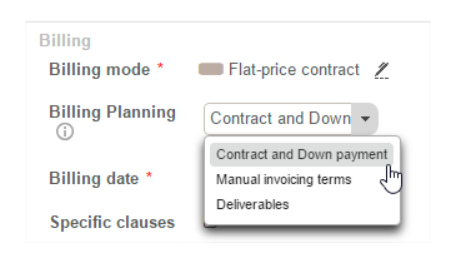
In "Invoicing schedule = Contract and Deposit" Fitnet automatically generates proposed invoices according to the parameters entered on the contract:
- Flat-price contracts & Sales: at the date of invoicing selected
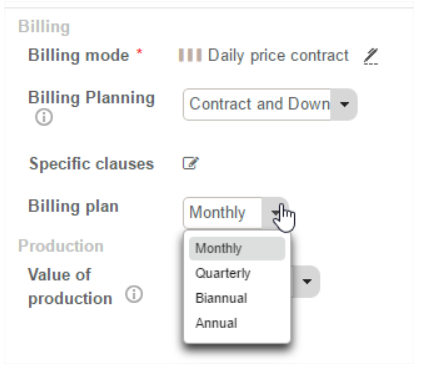
- Daily price contract: according to the selected invoicing plan:
- Monthly
- Quarterly
- Half-yearly
- Annual
Manual due date mode
Operating principle
In manual mode it is up to the user to manage the creation and scheduling of due dates for the contract (number, amount and dates).
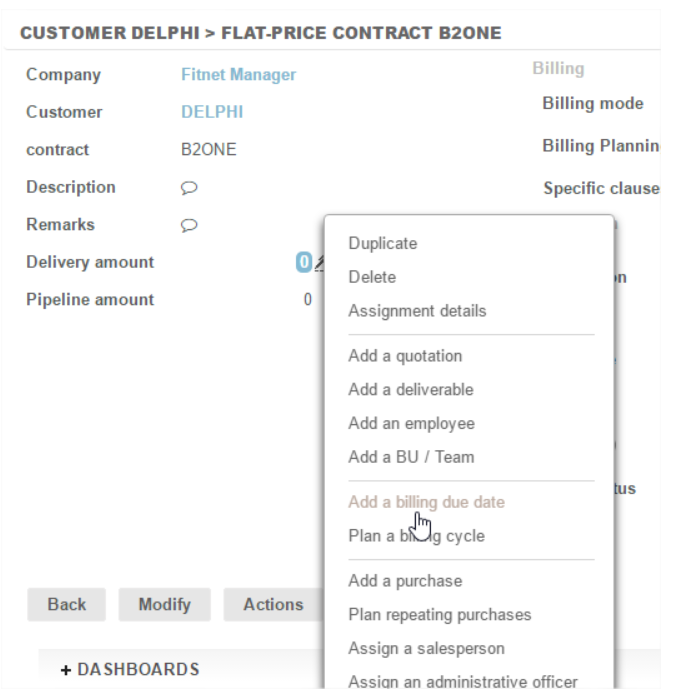
Due dates are created using the menu of the button Actions:
- Create a due date
or
- Schedule an invoicing due dates plan
Manually creating due dates
Due dates are set up in a pop up that allows you to record them in succession.
The fields to be filled in are:
- Numbers of due dates: that are generated automatically - but are modifiable
- Name: optional but enables the due dates to be named
- Amount: it can be filled in with numbers or % of total amount of the case
- Billing due date: the date on which invoicing will take place
- Description and Specific clauses: optional fields
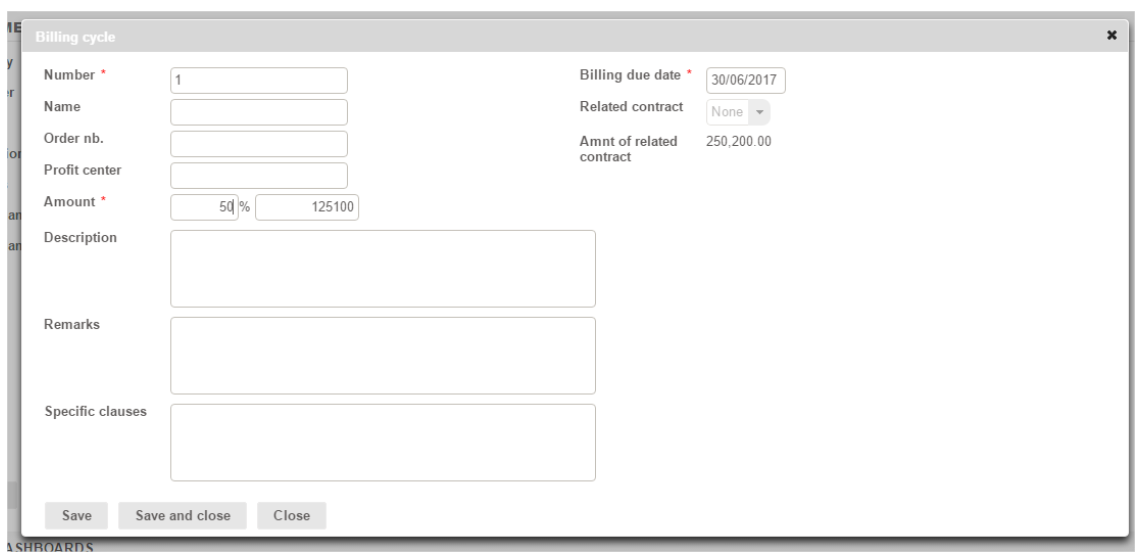
The SAVE button saves the due date and empties the form to allow the entry of another due date.
When creating the next due date the system will automatically offer the amount of the rest to be scheduled.