-1.png?width=150&height=38&name=Logo_Original_Dark%20(2)-1.png)
Gantt Chart objects be modified graphically, and you can drag them horizontally.
MODIFYING ASSIGNMENTS
Assignments - start and end - employees can be changed directly from the Gantt chart.
However, to avoid losing time declared by employees:
- The new start date must be earlier than the date of the first activity reported by the employee.
- That the new end date is after the date of the last activity reported by the employee.
EDITING DEPENDENCIES
Creating a dependence
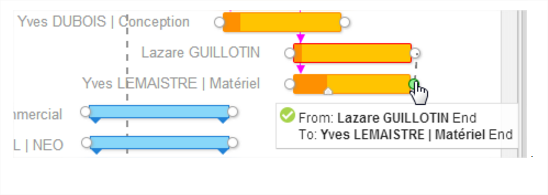
To create a dependency between tasks you need to draw a line with the mouse from the beginning of the dependency to the end of the dependency.
Small "circles" at the ends of each phase are used to make the connection.
Editing a dependence
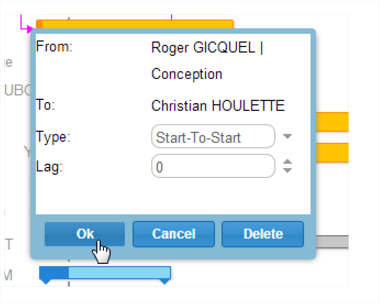
The dependencies editor is accessed by double-clicking on the arrow at the end of the dependency line.
Here you will find information about the dependence, namely:
- The dependent task
- The task on which it depends
- Type of dependence
- The Offset: it is possible to pre-set a delay on the dependent item
After modification the "OK" button saves the changes; the "Cancel" button cancels the changes and the "Delete" button removes the dependency link.
EDITING TASKS
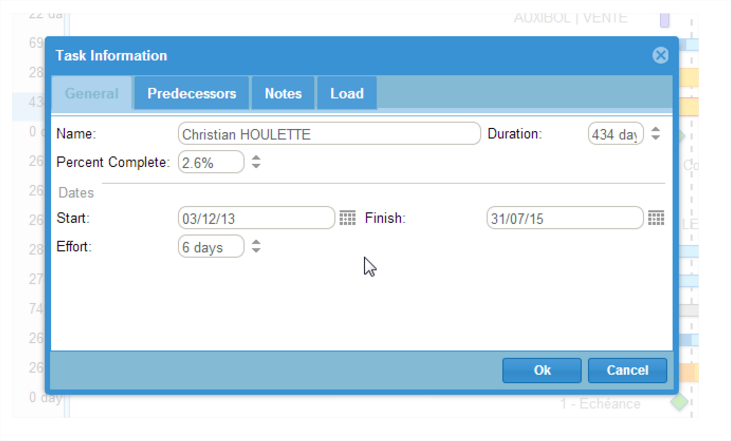
The task editor is accessed by double clicking on the task. It manages several functions classified by tab:
General information
A form tab that includes:
- The name of the task
- The duration of the task
- Start & End Dates
- The percentage of progress
All fields are editable and the "OK" button saves the changes.
List of predecessors
If the task is dependent on another task, the dependence links of items are found in this tab:
- The name of the task on which it depends ( predecessor),
- Type of dependence
- The expected offset.
The "Add new" button is used to create a new dependency.
Descriptions
This feature allows you to add comments / notes or comments on the task.
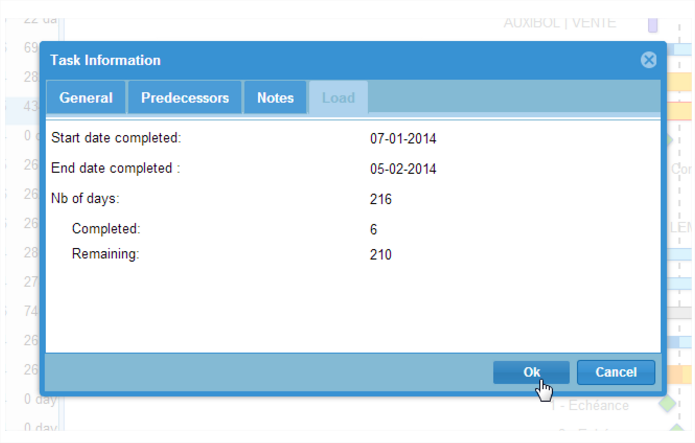
Workload
This tab is not a form with editable fields but it provides access to information on employee assignments such as:
- Start date achieved: date of first activity reported by employee
- End date achieved: date of last activity reported by employee
- Number of days forecast: number of days scheduled for the employee (from the initial Schedule - or failing information, the estimated Schedule)
- Achieved: number of days spent on task
- Remaining: estimated number of days - number of days achieved
All data in the assignment of the employee arise from the contract module and the settings defined when assigning the employee.
THE TASK BAR
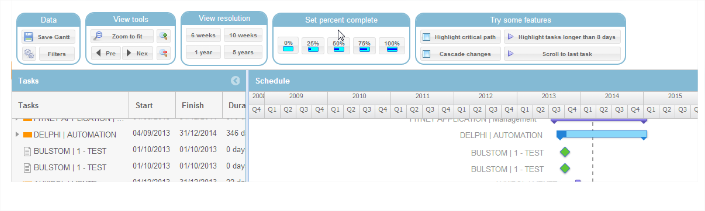
A taskbar at the top part of the Gantt Chart provides several Gantt display options.
Drag and drop is available over the entire schedule page for easier navigation in the Chart.
Gantt data
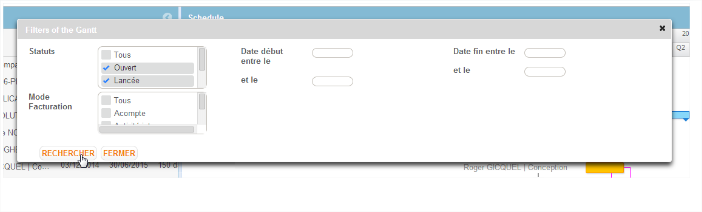
A filter on Contracts enables you to filter the data displayed in the Gantt Chart:
- By status
- By invoicing method
- By start date & end date
Video Tools
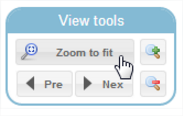
The visual tools section contains the options available for user navigation and display of the Gantt Chart:
- Zoom to fit: Obtain an overall view of all Gantt items
- Next: Moves the Chart to the next period
- Previous: Moves the Chart to the previous period
- Zoom + : zoom in on display
- Zoom - : zoom out on display
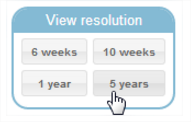
Gantt Resolution
4 resolutions are available for changing mesh quickly and efficiently.
- The 5 year and 1 year views enable you to display the Gantt in years with a monthly mesh
- The 10 week view gives a weekly view with a daily mesh
- The 6 week view is a weekly view
Other Features
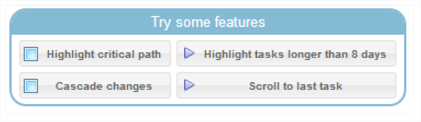
Highlight critical path: this feature enables you to highlight the critical path. The critical path is the task sequence determining the total project duration. Any delay on a project task will impact the entire project by that delay.
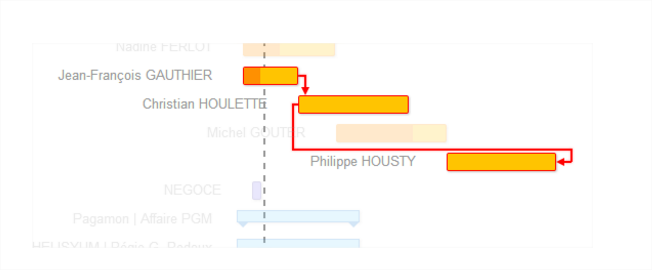
Cascade changes: This option links the dependent tasks: changes on one task modify all the tasks that depend on it.
Highlight tasks longer than 8 days: Tasks longer than 8 days will be highlighted.
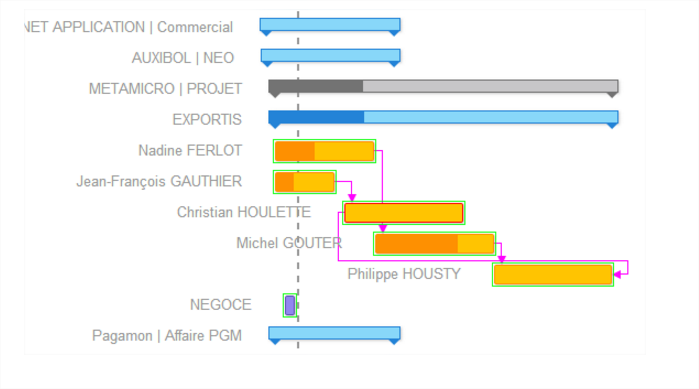
Scroll to last task: This option automatically places the user on the last task to be completed in the Gantt chart.