-1.png?width=150&height=38&name=Logo_Original_Dark%20(2)-1.png)
Introduction
The creation of an assignment from the contract is achieved from the menu [Actions] > Assign an employee. There are 3 different schedules available, depending on the status of the contract.
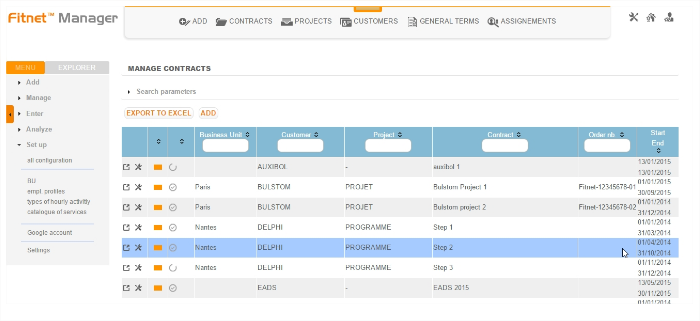
Contracts status and associated scheduling
Fitnet always gives Contracts a status; it enables you to distinguish between phases:
- From pre-sales and sales negotiation
- Starting production
- Closure or cancellation
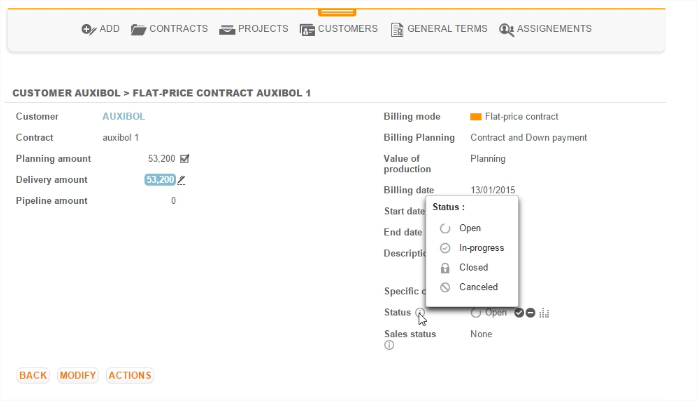
Open Contract & Initial Schedule
Definition
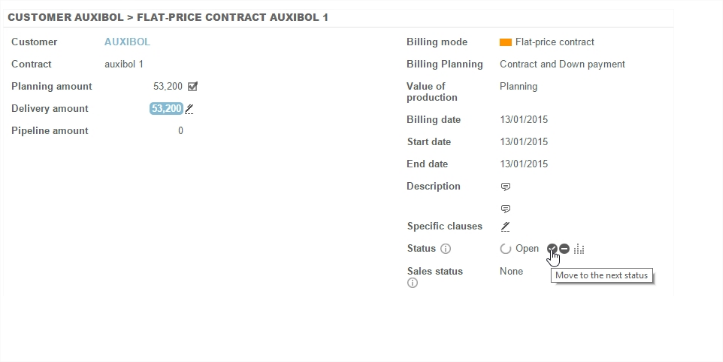
When a contract is created, it is automatically pushed to "open" status. The contract is not yet launched in production; it is therefore not available for entering hours or expenses.
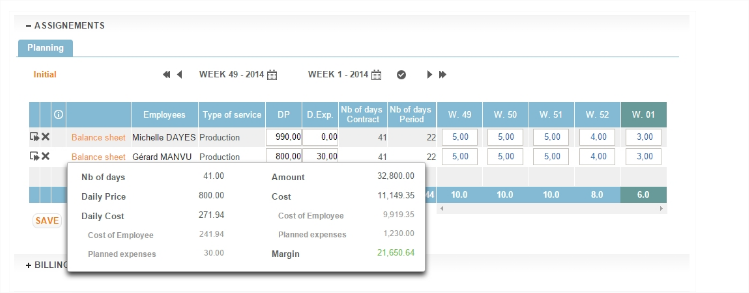
Planning Management
At this stage, it is already possible to create a first schedule: the "Initial Planning" to assign employees to build the forecast.
Fitnet Manager therefore automatically generates the Initial Planning for the contract.
The Launched Contract & the Forecast and completed Schedule
Definition
Launch a contract into production: status "Launched", the contract is available for entry of activity carried out or the assignment of expenses and will be taken into account in the Contracts Reports.
Scheduling Management
When a contract is launched, the Fitnet system:
- Freezes and Records the Initial Planning: closed to any action and cannot be modified. It will be used for analysis and comparison.
- Creates the Forecast Planning: by copying the Initial one. It is on this Planning that scheduling actions will now be made.
- Creates the completed Planning: this Planning traces the activity carried out and entered by employees. It can also be modified by those who are authorised for this contract.
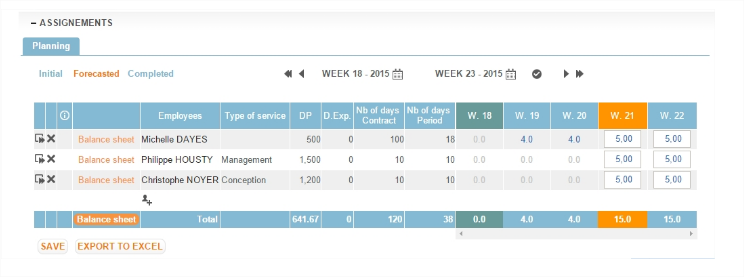
At this stage any scheduling action is through the Forecast Planning:
- Modifying the initial assignments: days, rates, deliverable services, etc.
- Addition of new employees to the contract planning
- Deleting assignments
It is from this Forecast Planning that the employee timesheet is filled in.
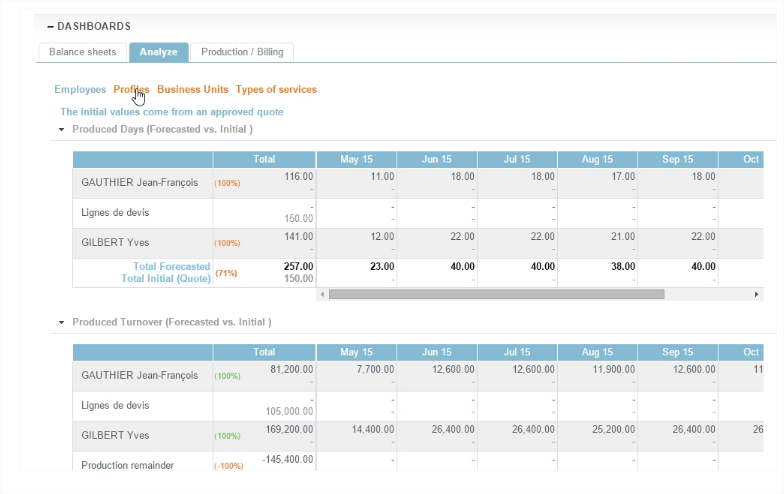
Comparative analysis Initial vs. Forecasted
In each contract an "Analysis" tool provides a real-time comparison between the Initial Planning and the Completed Planning.
Several consolidations and valuations are available.
Assignment of employees
Assignment data
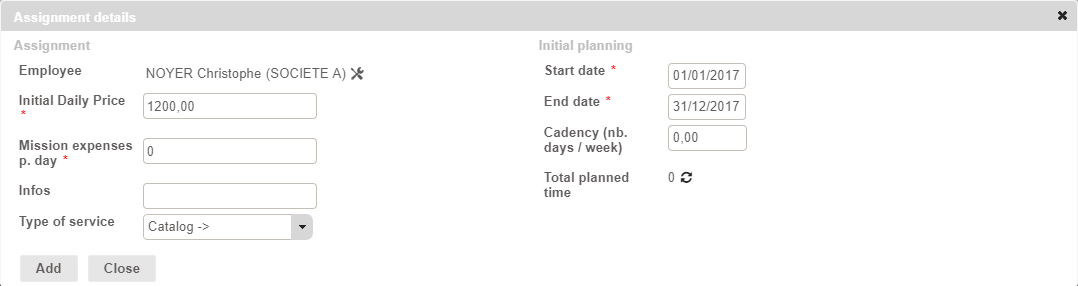
When adding a resource to the Planning an "Assignment Details" pop up enables you to enter the information related to the intervention:
- The Initial Daily Price: a default value has been entered in the profile configuration. This field is editable in the assignment field and enables adjustment of the price on each new contract.
- Mission expenses p. day: optional field to enter a default budget for expenses per day of intervention.
- Infos : optional field to fill in various information
- Type of services: optional field that can be disabled through the settings. It enables you to specify the task delivered during the intervention.
- Start Date / End Date: define the employee's intervention period. By default the start / end date of the contract are used.
- Cadency: field that is used to create the forecast by defining, according to the set time mesh, a default response date package.
Mass assignment
Employee assignment is achieved by selecting the employees involved in a contract by name.
However, it is possible to open the contract to a group of people without nominative assignment:
- Contract > Menu [Actions]> "Assign a BU/Team"
This manipulation enables all employees attached to a BU or Team to have access to the contract and declare their working hours.
Note that the BU/Team option can be enabled or disabled.
The contract is therefore potentially available in the BU/Team members' timesheet without being immediately listed in the timesheet: it is up to the employee to decide whether to enable or not.
If the employee does not enable the box in question in their timesheet - if they do not declare time on this contract:
- It does not appear in their schedule load
- The employee does not appear in the schedule of the contract in question
Warning : The Initial Daily Price: is unique for the whole team no distinction between resources; it could still be changed once the employee has been assigned to the contract in their timesheet by accessing the contract schedule.