-1.png?width=150&height=38&name=Logo_Original_Dark%20(2)-1.png)
Creating a schedule of increase
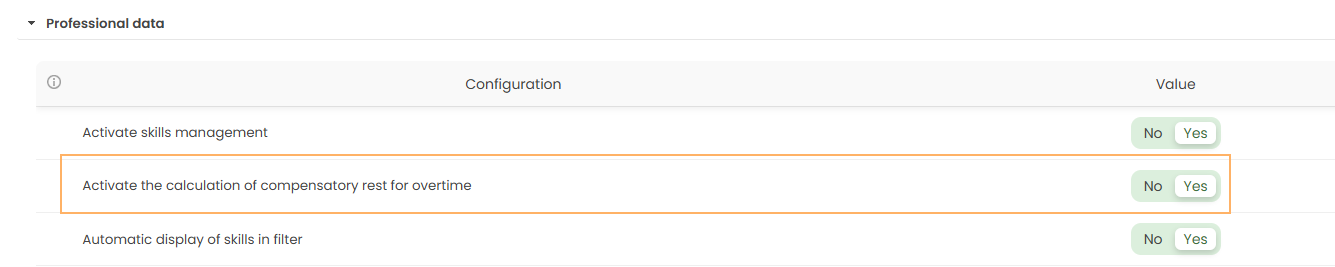
To create schedules of increases, you must first check that the "Activate the compensatory rest's calculation of the overtime" feature is activated in the Settings > HR Folders > Professional data.
Then go to the Configuration menu > Companies > Schedules of increases for the compensatory rest's calculation.
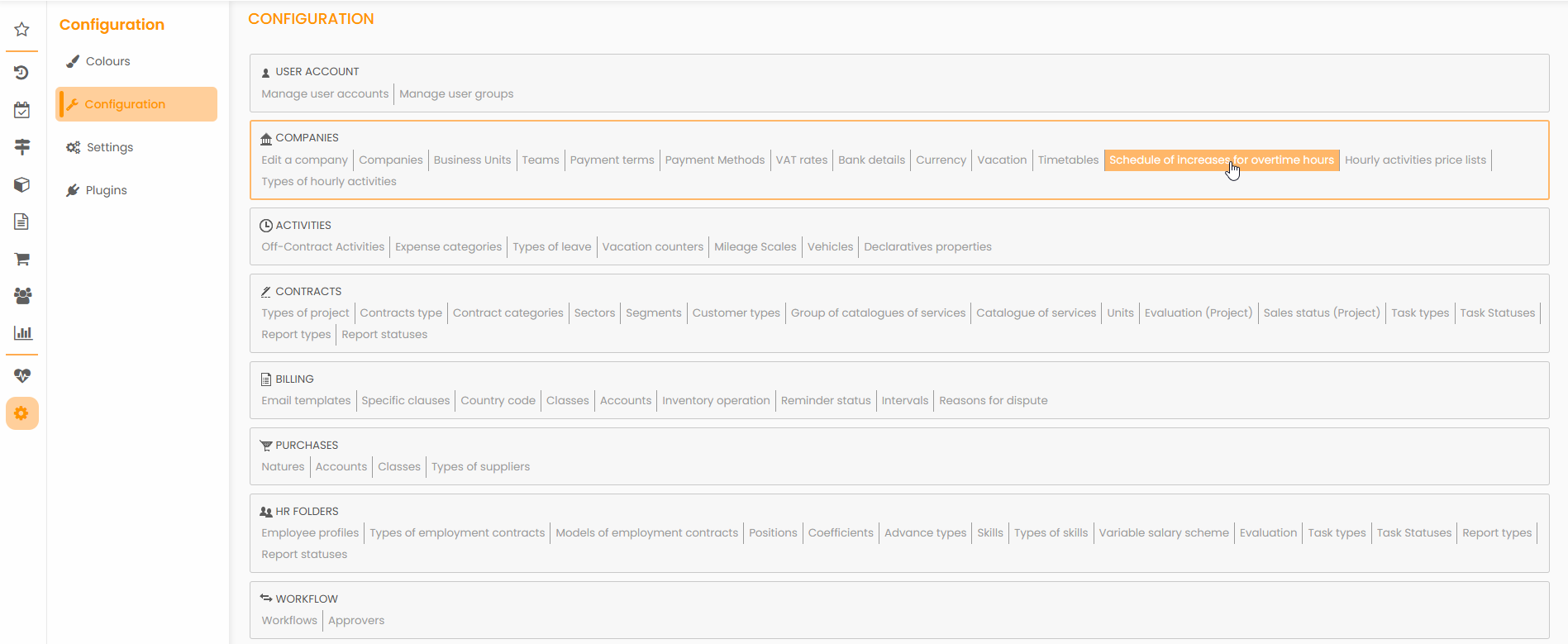
You can then add / modify / delete schedules of increases.
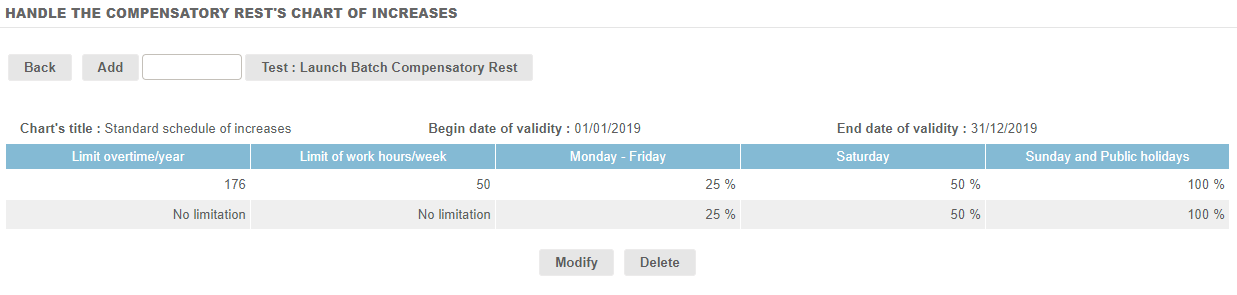
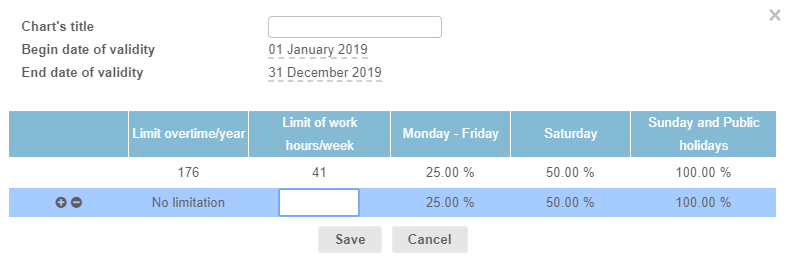
From left to right, the parameters to take into account are the following:
-
WARNING: The begin date of validity must be the 1st of January of the year.
-
Limit overtime/year: the yearly limit of overtime to which the schedule is applied
-
Limit of work hours/week: the limit of total worked hours/week (working hours + overtime) to which the schedule is applied
-
The calculation of weekly overtime is as follows: "Nb of total worked hours/week - Nb of hours/week on the timetable"
-
- Percentage of increase for overtime
- From Monday to Friday
- On Saturday
- On Sunday and holidays
Increase calculation: 100% means that every extra hour equals 1 hour of compensatory rest.
WARNING: For the configuration to be functional, you must configure at least one line without any limit (see example above). To do so, you have to let the boxes blank.
Attaching schedules of increases
Attaching to a Company / BU / Team / Employee's Profile
To be used, a schedule of increases must be attached to at least one element of the organizational structure of the company:
- Company
- Business Unit
- Team
- Employee's Profile
- Employee
- Employee's Profile
- Team
- Business Unit
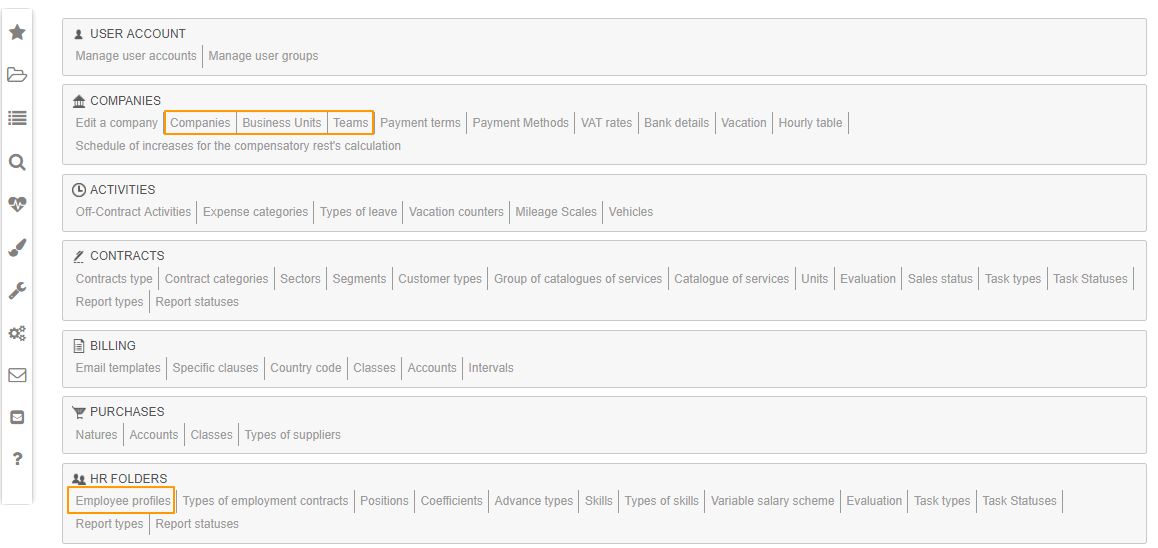
At the level of the Company / BU / Team / Employee's Profile, go to the Configuration:
- Company: Configuration > Companies > Companies
- Business Unit: Configuration > Companies > Business Units
- Team: Configuration > Companies > Teams
- Employee's Profile: Configuration > HR Folders > Employee Profiles
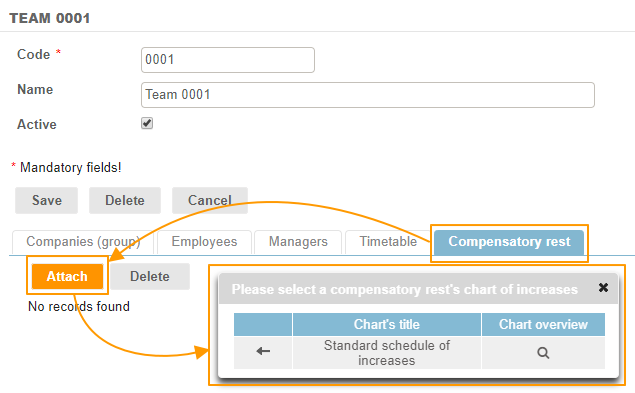
You can attach a schedule of increases from the Compensatory rest tab. When you click on "Attach", the list of created schedules appears and you can select the desired one by clicking it.
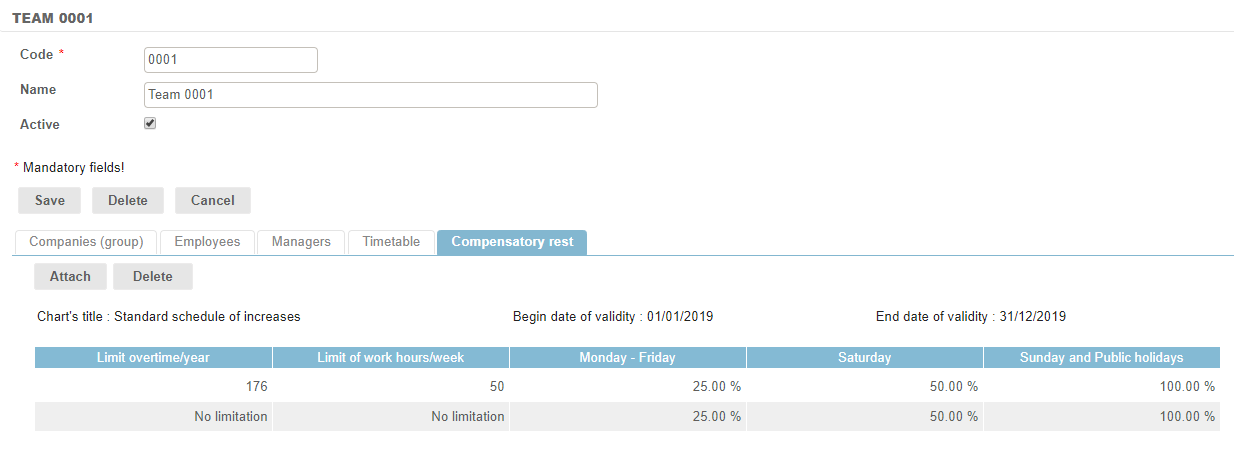
In our example, the selected schedule of increases has been attached to the team:
Attaching to an Employee
At the level of the employee, you can attach a schedule of increases directly from the Employee's sheet (HR Folders module > Employees > Select employee > Compensatory rest tab).