-1.png?width=150&height=38&name=Logo_Original_Dark%20(2)-1.png)
Configuring Hourly Activities types
It is possible to create as many types of hourly activities as desired:
- Configuration > Contracts > Hourly Activities types
- The creation of a new type of time activity is done via the button "Add"
- Fill in the designation
- Save
Manage applicable price lists
Access
There are 3 paths in the application to access the price lists and create new ones:
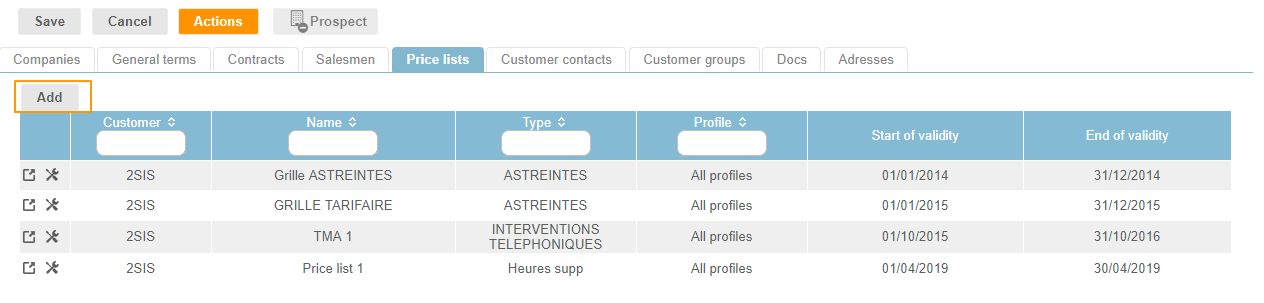
- From the Customer's sheet > Actions button > Add a price list (you can consult the existing price lists in the dedicated tab)
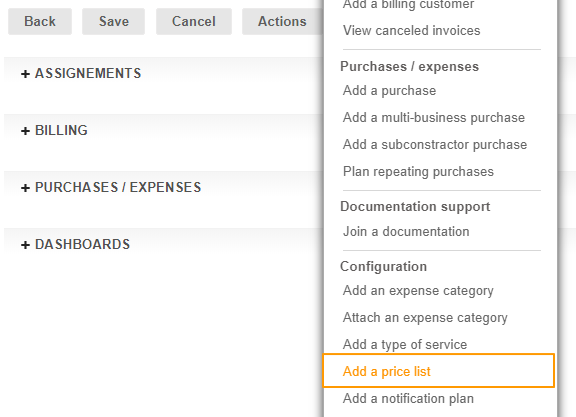
- Directly from the Contract > Actions button > Add a price list
Attention: Today, it is not possible to attach price lists to sales or subscription contracts. We are developing this option, but in the meantime we advise you to use the "Flat-rate" billing mode, which still allows you to bill deliverables.
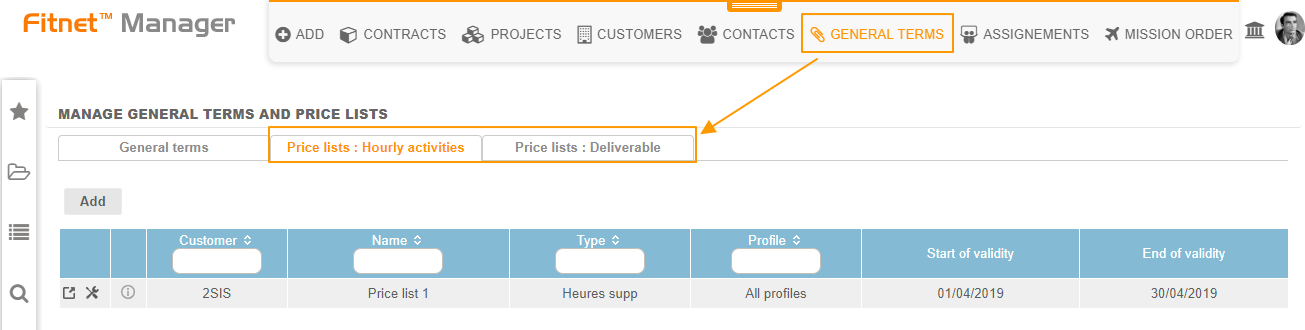
- From the Contracts menu > General Terms > Price lists
Configuration
Price lists are defined by several elements:
- The customer to which it is attached
- The price list designation
- The hourly activity type
- The start and end dates of validity
- Profile(s) concerned by the price lists: Fee schedules may be restricted to certain profiles - or relate to "all profiles"
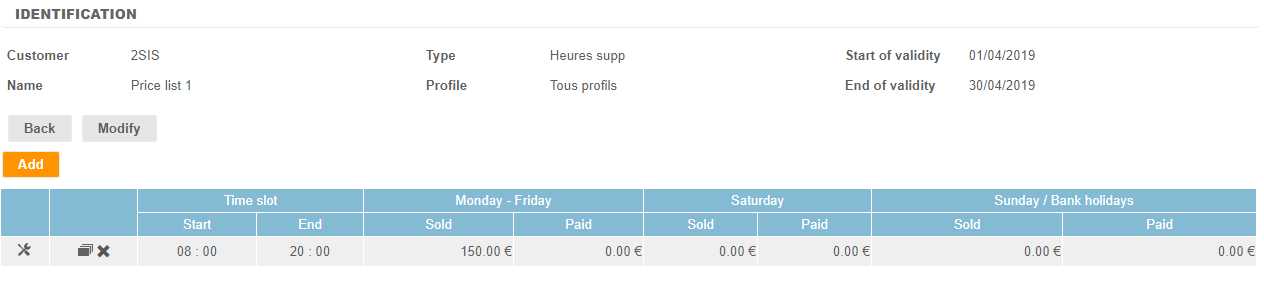
Once the price list is saved, it will be necessary to create the hourly rates (in the same screen, via the button "Add"):
- According to time slots
- Depending on the days of the week
- By recording sold prices and paid prices
The "Save" button allows you to empty the form to directly make a new entry.
The "Save and Close" button closes the entry.
Attach a price list to a contract
In order to make the price list available and to allow employees to declare time spent, it is necessary to "activate" it in the concerned contract.
The Actions button on the contract allows you to attach a price list. Thus the employees assigned to the contract - and only them - will be able to enter hours of activities next to their nominal activity from the Timesheet module.