-1.png?width=150&height=38&name=Logo_Original_Dark%20(2)-1.png)
On the Capacity Planning, the Contracts view allows you to quickly scan the number of days spent per mission and employee by hovering your mouse over the list.
Filter the available contracts
On the Capacity Planning, you can choose the contracts you want to assign. To do so, you must click on the funnel on the left (see [1]).

There are two ways of filtering the contracts : by Date or by Activities.
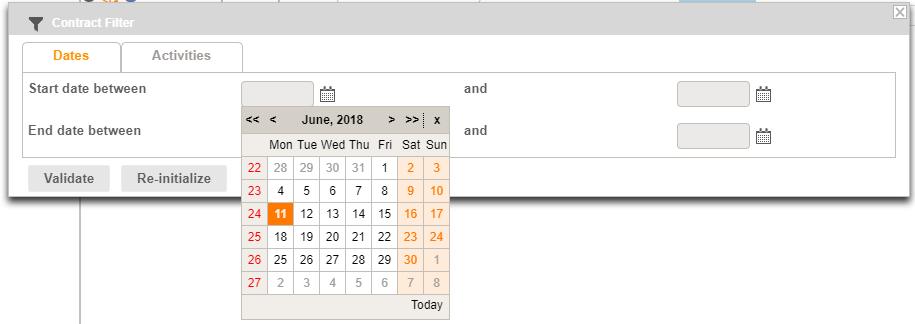
By Date, you have to fill in a time slot from the beginning to the end of the contract, which will be directly available from the calendars:
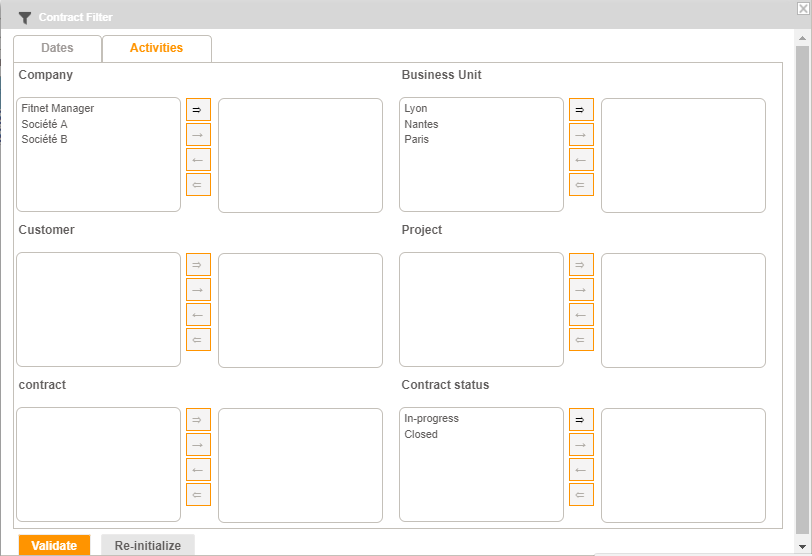
By Activities, you can filter by Company, Business Unit/Team, Customer, Project/Contract, or Contract Status. Once you have filled in the filters, you can start the search or add other filtering options (see below).
Don’t forget to validate.
You can access to other filtering options by clicking on the [1] icon :

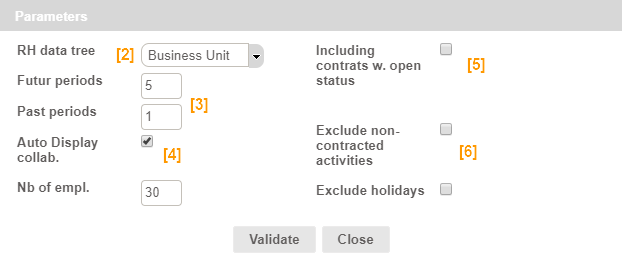
It opens a pop-up window which allows you to modify the following categories:
- The RH data tree [2]
- The view on the futur/past periods [3]
- Maximum number of employees displayed [4]
- Include contracts with opportunity status [5]
- Exclude non-contracted activities and holidays [6]