-1.png?width=150&height=38&name=Logo_Original_Dark%20(2)-1.png)
Workflows are set up following a sequence of steps. Each step is assigned a sequence number.
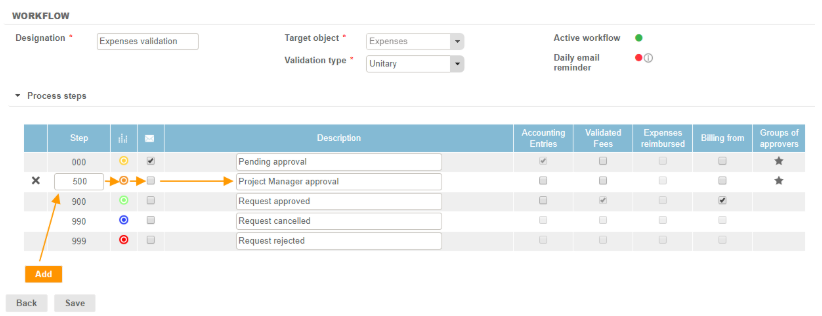
Depending on workflows target objects, there can be at least 3 or 4 steps. But you can add as many steps as you want. To do this, you have to select a workflow (Configuration > Workflow > Workflows) and follow this process:
- Click on the "Add" button
- Enter a step number between 000 and 899
- Select an icon color for the new step
- Enter a designation
- Enter a approver / group of approvers
- Click on the "Save" button
Step numbers
Steps between 000 and 899 correspond to requests to process: these steps need a validation.
After 899, the steps correspond to requests already processed. That means that the approver has processed the request by clicking on one of the available buttons: Validate or Refuse. Those steps numbers match end of processing steps, they thus can't be modified.
The colored icon
One colored icon is assigned to each workflow step. It allows you to quickly scan the status of requests: pending approval, refused, cancelled, approved, not submitted. You can change the color by clicking on the icon and selecting another color.
Email notifications
An email notification can be send to the approver when a new request has been submitted. Likewise, an email notification can be send to the employee when his request has been validated, refused or cancelled.
To activate this option, you must check the matching box on the column:  .
.
For more information, please consult our article about Email notifications.
Description
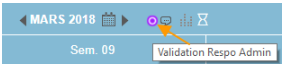
For every step, you have the option to add a description. The description can be read by hovering the cursor over the colored icon: it can provide you with additional information about the state of the request.
Groups of approvers
The last column allows you to configure groups of approvers for each step. To display the list of approvers associated with a particular step, you have to hover the cursor over the star icon. You can also edit the group of approvers by clicking on this icon.
For more information about how to configure groups of approvers, please consult our detailed article: Configuring approvers.
For more information about available groups of approvers, please consult the article Groups of approvers.