-1.png?width=150&height=38&name=Logo_Original_Dark%20(2)-1.png)
Requests submitting
For every item of a workflow, the employee can send en masse or individually his validation request. To do this, you have to click on the "Submit" button. This applies to all items being part of active workflows: timesheet, expenses, vacation, etc.
Once the employee has submitted his request, he cannot edit or delete this request anymore. Fitnet Manager thus secures the request and it's up to the approver to process the request.
Requests processing
There are 2 ways of processing the requests.
1) From Fitnet Manager interface
Activities Module > Requests > Requests to process [1] or by clicking on the notification icon (at top right of your screen) [2]:

Then you have to search the request. Column headers allow you to sort information by date or status, but also to enter the name of an employee / contract.
Once you have found the request, you have to check the box at the start of the line and validate/return/refuse/cancel by clicking on the button at the bottom of the page.
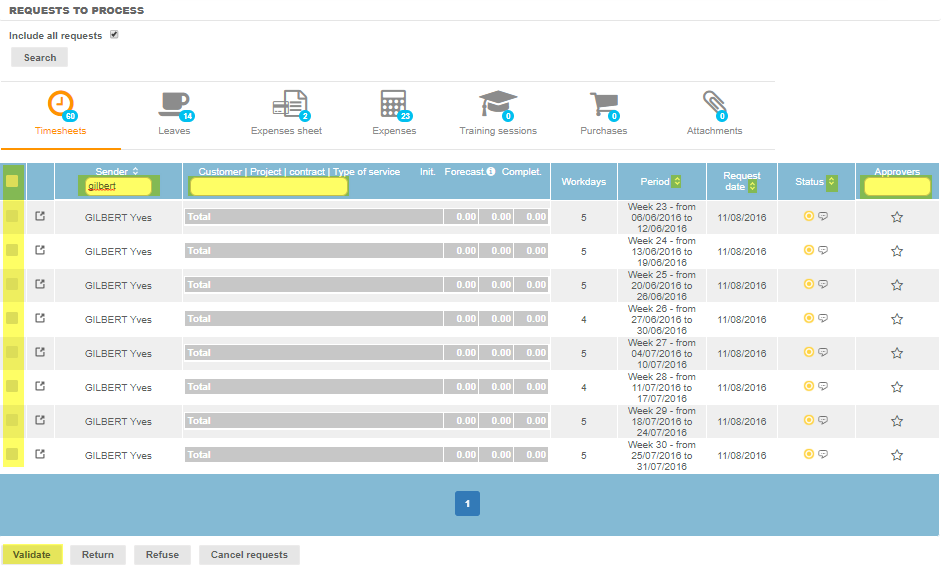
A discussion thread is available when clicking on the  icon (status column). This option allows the approver and the employee to comment the request being processed. These comments are included in notification emails.
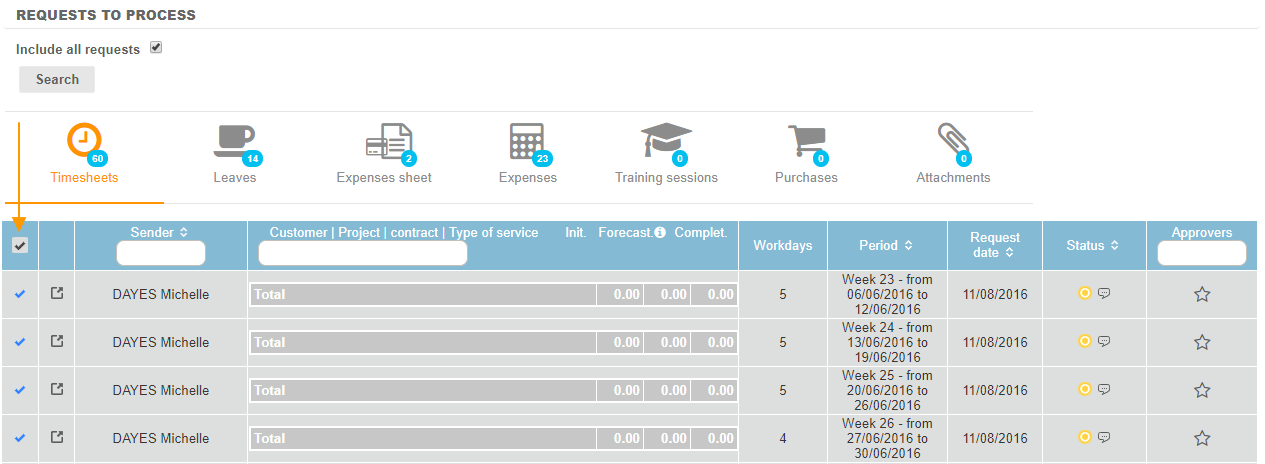
You can also process requests en masse: to do this, check the box located on the column heading:
2) From the notification email
Requests can also be processed directly from the notification email sent to the approver. For more information about notification emails for workflows, see this article.
To do this, you just have to click on the corresponding button. A Fitnet Manager window will open to confirm that your action has been taken into account.
It is also possible to view the details of the request by clicking on the link "Display requests". You will then be redirected to the "Requests to processé page.
Processed requests
Once a request has been processed, you may need to edit it. You can access it by clicking on the Activities Module > Requests > Requests already processed.