-1.png?width=150&height=38&name=Logo_Original_Dark%20(2)-1.png)
Suppliers are managed in multi-company mode: the list is shared across all companies.
A company Administrator will not see any other information about companies (including their suppliers!) As such, the Administrator of Company A will not see any information about Company B: neither the address, nor contact details, billing, or accounting integration for Customers, even if the company is related and customers are shared between the two companies.
Attaching a Supplier to a Company makes it possible to
- Customise information in the supplier screen: payment, accounting integration, supplier contacts, BIC.
- Create purchases (as the list of suppliers is limited to suppliers that are attached to the Company)
- “Purchase” from a Supplier; the Company must be attached.
Creating a Supplier
When a Supplier is first created, it is attached to the company for which the user has logged in.
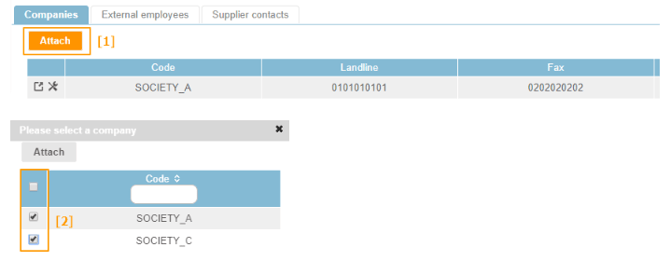
To attach a Supplier to other companies within the group, click on “Attach” [1] then select the companies [2] to attach them :
Supplier: General and shared information
General information, and information that is specific to the Supplier, independent of the purchasing company, is common to and shared among all attached companies (and cannot be customised).
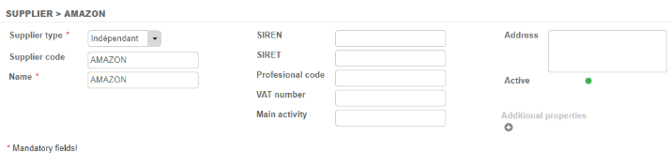
Identification
This relates to the supplier’s Identity Card.
- Supplier type: SelectMenuList to be defined in Configuration > Purchases
- Supplier code
- Name: company name
- SIREN
- SIRET
- Profesional Code
- VAT Number
- Address
- Active
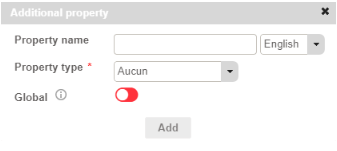
 Each user can add additional properties, which will apply to all supplier sheets.
Suppliers: customising information
Each attached company can personalize information to suit its needs.
Supplier contact details
Once the Supplier has been saved, users can add a supplier contact via the Actions button.
Rules
- Only ONE Supplier Contact can be configured by default for each company.
- When creating a supplier Contact, it is attached by default to the company where the user is logged in.
- When creating a Supplier contact, it must be attached to the company before it can be defined as the default Contact.
Column  : Allows a Supplier Contact to be attached to attached companies.
 “Skinnable colour”: the company where the user is logged in is attached
 “Dark grey”: companies attached to this supplier are attached to this contact
 “Light grey”: no companies attached to this supplier are attached to this contact
Column  : Allows a Supplier Contact to be defined by default
 “Skinnable colour”: the supplier contact is defined by default for the company where the user is logged in
 “Dark grey”: the supplier contact is defined by default for attached companies
 “Light grey”: the supplier contact is not defined by default for attached companies
It should be noted that, when the mouse pointer moves over the icons, the names of companies that are attached and/or defined by default will appear.
Supplier: BIC
Once a Supplier has been saved, users can add a BIC using the Actions button. The following rules apply:
- Only ONE BIC is available per company by default;
- When creating a BIC, it is attached by default to the company where the user is logged in
- When creating a BIC, it must be attached to a company to be able to defined as a default BIC
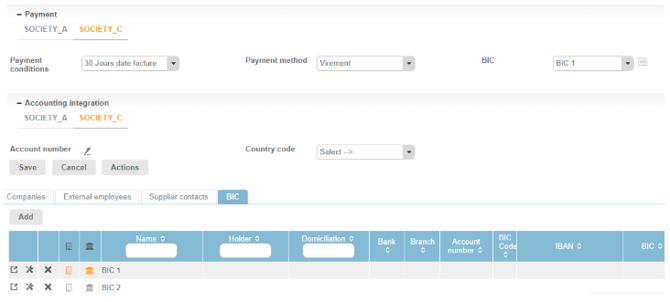
Column : allows you to attach a BIC to companies attached to the supplier.
- “Skinnable colour”: the company where the user is logged in is attached
- “Dark grey”: companies attached to this supplier are attached to this BIC
- “Light grey”: no companies attached to this supplier are attached to this BIC
Column : Allows you to define a default BIC
- “Skinnable colour”: the BIC is defined by default for the company where the user is logged in
 “Dark grey”: the BIC is defined by default for attached companies
- “Light grey”: the BIC is not defined by default for attached companies
It should be noted that, when the mouse pointer moves over the icons, the names of companies that are attached and/or defined by default will appear.
It should also be noted that the default BIC will also appear in the Payment block.
Making Payment
A new tab will be generated each time a Company is attached to a Supplier.

By default, all fields will be filled out in advance, based on information entered into the Company sheet, and all can be customised for each Supplier (then for any subsequent purchase):
- Payment terms: SelectMenuList to be defined in Configuration > Company
- Payment type: SelectMenuList to be defined in Configuration > Company, if the setting is active (Settings > Purchases > General)
- BIC: carries over the default BIC
Warning: detaching a company, saving the changes and then reattaching the company “loses” any customisation; the company’s default information takes precedence.
Accounting integration
The same rules and principles apply as for Billing.
Each time a company is attached to a Supplier, a new tab will once again be generated at the accounting integration level.
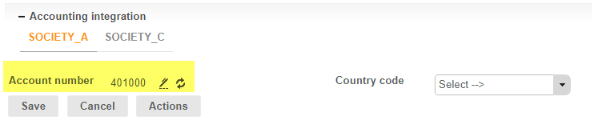
As such, each company can enter its own account number and apply its own accounting terms.
When generating accounting entries (moving from "Purchase is confirmed" to "Invoice is received" status), the account details specified in the purchasing company’s tab are carried over.