-1.png?width=150&height=38&name=Logo_Original_Dark%20(2)-1.png)
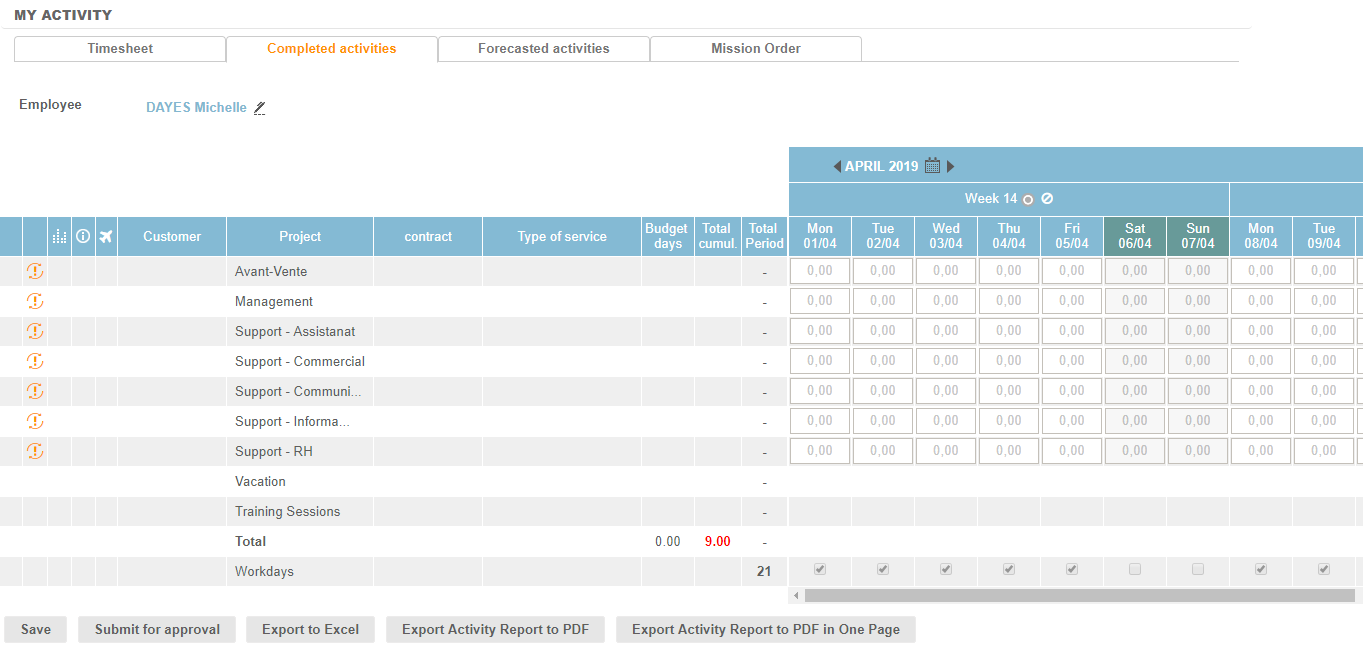
The Timesheet allows employees to enter the time they have spent on activities. Depending on the choice of entry type, the times can be entered in:
- Daily Entry Type (Hourly entry): number of hours a day
- Daily Entry Type (Daily entry) : days and fractions of days
- Weekly Entry Type : number of days a week
- Monthly Entry Type : number of days a month
Employees can enter the time spent:
- On activities of customer | project | contract to which they have been assigned: these activities are represented by the following icons:
 ,
,  ,
,  ,
,  ,
,  or
or  according to the billing mode
 - On off-contract activities (unbilled activities) : represented by:

A summary of activities and working days is presented in the Total cumul. (for the entire duration of the activity) and Total Period (for the selected period) columns.
Available setting points
The display of your timesheet is configurable:
- You can display it the leaves entered in the Activity module.
- If the setting "Types of services selection for all activities" is activated,
- "Sélection des types de prestations pour toutes les activités" est activée, the employee can freely choose the types of service of an activity (task). This gives the possibility to specify the time spent for several types of service on the same case.
- The fields identifying the activities in the columns can be adapted to your company.
To note: A timesheet must be completed to be submitted to validation. However, you can send a request to our support team to enable the submission of an incomplete timesheet.
The Budget Days feature allows you to compare the Total cumul. to an amount of days sold on an activity. This provides you with a quick analysis of profitability.
Available setting points
You can secure the validation of the timesheet by configuring a workflow.
If a workflow is existing, once you have entered and saved your time entry, you can submit it by clicking on the button "Submit for approval":

The progress of the timesheet in the validation cycle is specified by a color code. It is possible to add a comment:  .
.