-1.png?width=150&height=38&name=Logo_Original_Dark%20(2)-1.png)
It is not possible to delete an employee in Fitnet Manager.
Employees can, however, be deactivated. To do this, go to: HR Folders module > Employees.
For an internal employee
You will need to add an exit date in the employee’s current employment contract. Once this date is entered, the employee will be automatically deactivated.
You can modify this date from the “Contracts & Bonus” tab on the employee screen:
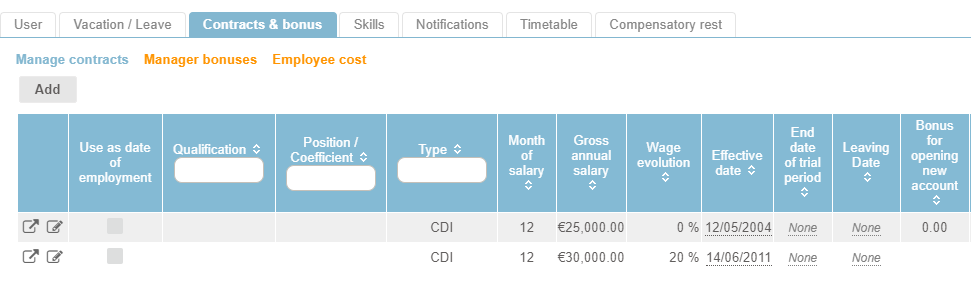
If no employment contract exists for the employee you wish to deactivate, you must create one.
From the employee screen, simply click on the "Actions > Add an employment contract” button.
For an external employee
It is not possible to add an employment contract for an external employee.
Instead, there is an “Exit date” field in the employee screen > Administrative data:
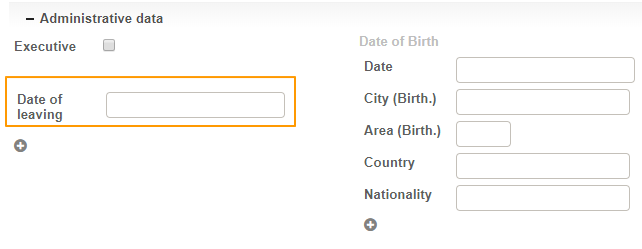
As with an internal employee, an external employee will be deactivated once this date is entered.
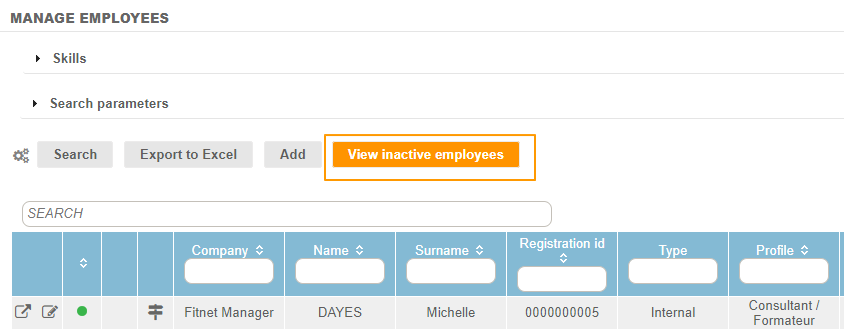
Deactivated employees are accessible from the Employees sub-module, by clicking on the “View inactive employees” button:
In case of a duplicate employee
In this case, we recommend deactivating the duplicate employee.
When the next employee arrives, you will be able to use the disabled duplicate employee screen, and simply modify the data in this form rather than creating another employee profile.