-1.png?width=150&height=38&name=Logo_Original_Dark%20(2)-1.png)
To create a vacation/leave, the employee must access the dedicated module: Activities > Vacation/Leave.

Steps to follow to create a vacation/leave
Here are the steps to follow to create a vacation/leave:
- Click on the "Add" button
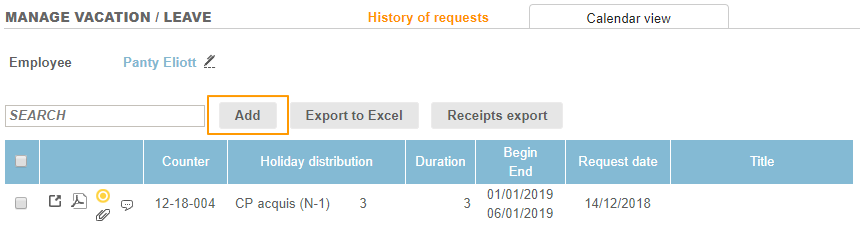
A pop up opens, which allows you to:
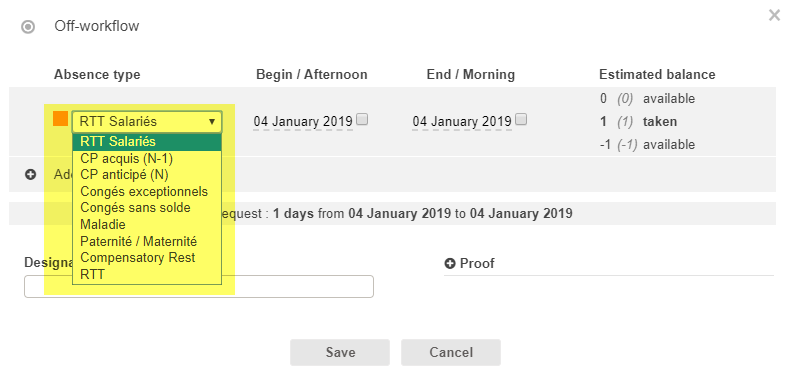
- Select the type of leave (set up by the Admin)
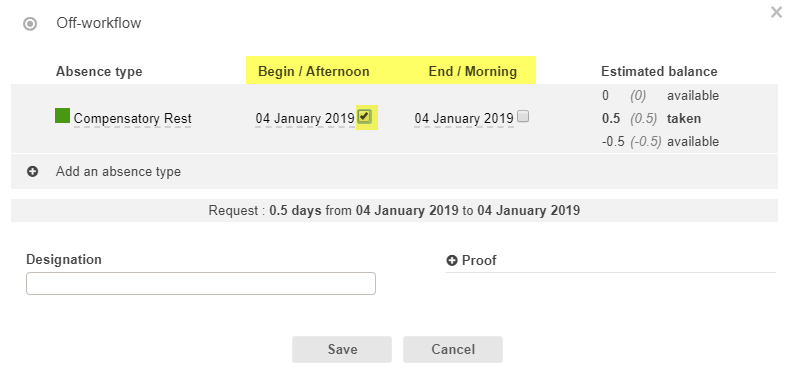
- Select dates : you can select a half-day (morning or afternoon).
- When ticking the "Begin / Afternoon" checkbox, you ask for an afternoon and the leave will begin at 12 pm.
- When ticking the "End/Morning" checkbox, you ask for a morning and the leave will end at 12 pm.
- Check your estimated leave balance. For more information, read our article "How to check the estimated leave balance".
- Add a designation. For example: “summer vacation” type to inform the approver.
- If the type of leave is "sick leave", you must add a medical proof.
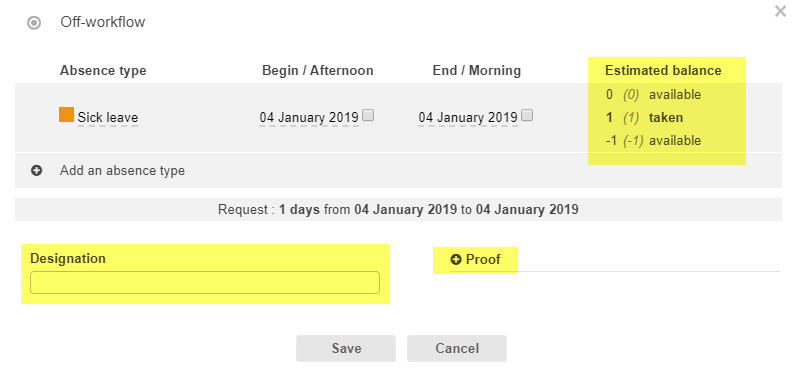
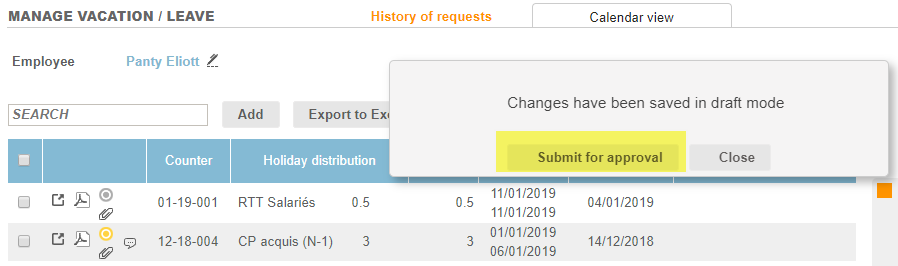
- Save: you must then save the leave request. You will be able to modify/display/delete your request as long as you have not send it to the approver.
- Submit for approval: This option allows you to directly submit the request of leave to approval: from then on, you will not be able to modify the request.
Select several types of leaves for one leave request
If you want to submit a leave request with several types of leaves, the leaves must be set on a continuous period:
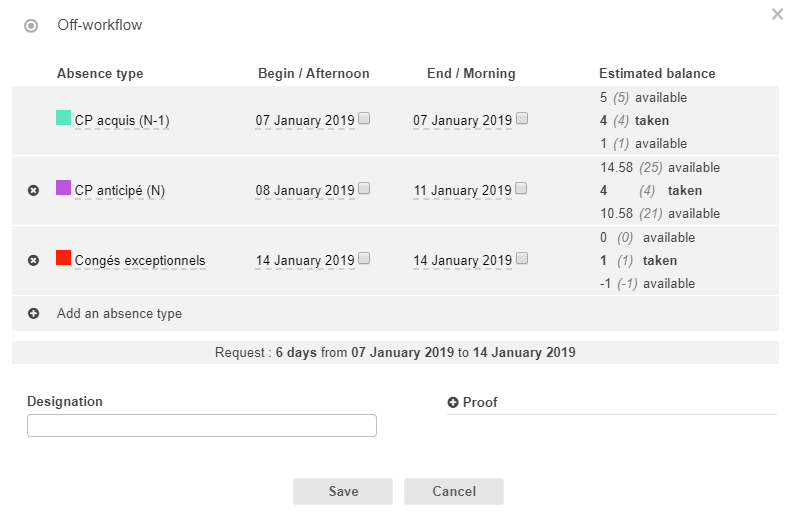
- In the following example, I ask for:
- 1 day of Paid leave (CP N-1) on Monday, January 7th
- 4 days of Paid leave (CP N) from Tuesday, January 8th to Friday, January 11th
- 1 day of special leave on Monday, January 14th.
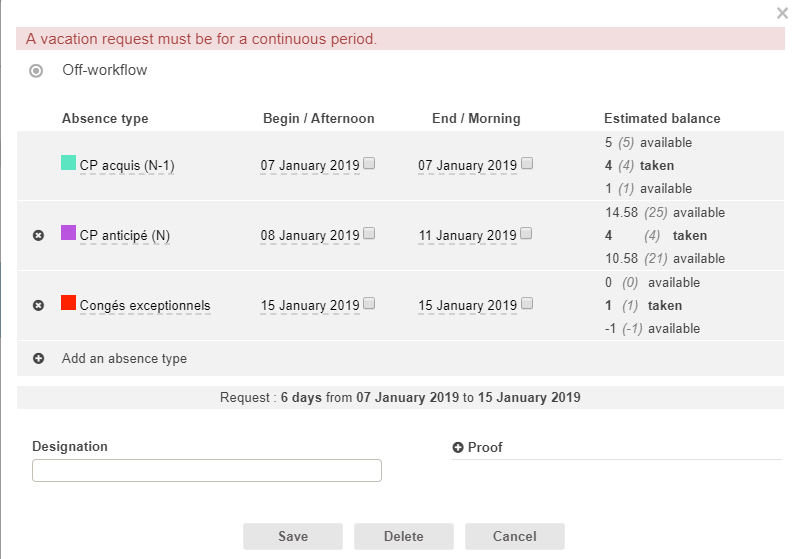
- However, if you enter a non-continuous period of time (replacing the Monday 14th by the Tuesday 15th for example), you will obtain the following error message: