-1.png?width=150&height=38&name=Logo_Original_Dark%20(2)-1.png)
Click on a company
When you click on a company from the Employees tree, several actions are available:
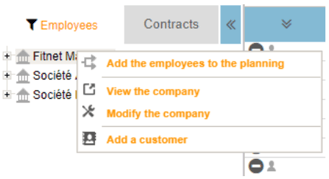
Add the employees to the planning
Adds all of the company's employees to the planning.
View/Modify the company
You can view or edit the company’s sheet. This option is also available from the menu Configuration > Company > Edit a company.
Add a customer
Opens a pop-up from which you can directly add a customer.
Click on an Employee
When you click on an employee from the Employees tree, several actions are available :
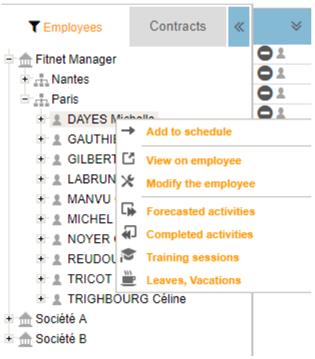
Add to schedule
Adds directly the employee to schedule.
View on employee
Opens Employee’s sheet on a new tab (view mode). This option is also available from the HR Folders Module > Employees.
Modify the employee
As View on employee, this option opens Employee’s sheet on a new tab (edit mode).
Forecasted/Completed activities
You can view the employee’s forecasted and completed activities. This option is also available from the Activities Module > Timesheet.
Training sessions
You can view the employee’s training sessions. This option is also available from the Trainings Module > Trainings.
Leaves, vacations
You can view the employee’s leaves and vacations.This option is also available from the Activities Module > Vacation/Leave > Leaves, Vacations.
Click on a customer
When you click on a customer from the Contracts tree, several actions are available :
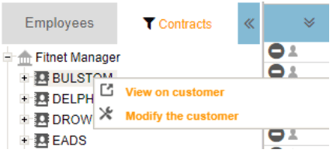
View on customer / Modify the customer
You can view or edit the customer’s sheet. This option is also available from the Contracts Module > Customers.
Click on a project/contract
When you click on a project/contract from the Contracts tree, several actions are available :
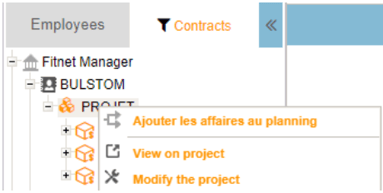
Add the contracts to the planning
Adds the contract/project to the planning.
Add an employee
Opens a pop-up from which you can directly add an employee.